Coleman Technologies Blog

Coleman Technologies Blog

We can give your organization comprehensive IT services and 24/7/365 live support for a predictable monthly fee. Stop stressing about technology, and start focusing on growing your business.

Tip of the Week: Setting Your Out-of-Office Message in Outlook


Tip of the Week: Setting Your Out-of-Office Message in Outlook

The holidays are fast approaching and that means people are going to miss work for one reason or another. If you can get away from the office for a little bit, you’ll want to set up an out-of-office message to ensure that others know you will get back to them when you get back to the office. Here’s how you can set up an autoresponder for an out-of-office message in Microsoft Outlook.

How to Set Up Your Out-of-Office Message

Setting up an autoresponder in Outlook is simple. To get started, open up Outlook and select File.

Under the Info section—the one with the Home icon—make sure you have your account selected. You should see an option underneath it for Automatic Replies.

In the box that appears, you will see an option for Send Automatic Replies. You can configure your auto replies to send only during a specific timeframe using the drop-down boxes and date ranges. Once you have the dates determined, you can use the textbox beneath to enter your auto reply message. This will be sent to anyone who sends you an email while you have your autoreply active.

It’s also worth noting that you have a lot of control over the text that appears in this box. You can include links to resources, contact information for who they might want to contact while you are out of the office, and so on. We recommend that you don’t just leave your contacts with a simple “I’ll get back to you.” If you do leave the office for an extended period of time, be sure to give your contacts some direction, as it could make all the difference for a prospective client, annoyed customer, or other disgruntled auto reply recipient.

We hope you found this tip helpful! If you have any suggestions for future tip blogs, be sure to sound off in the comments below.

Continue reading

What You Need to Know About the Lifespan of the Windows 10 OS


What You Need to Know About the Lifespan of the Windows 10 OS

The end of support for Windows 10 is scheduled for October 14, 2025. While that is a couple of years away, it's crucial to start strategizing for the future now. After this date, Microsoft will cease providing technical assistance, security updates, and bug fixes for the operating system. This means that continuing to use Windows 10 beyond that point could expose users to security risks and performance issues.

What Does “End of Support” Entail? 

Essentially, it makes using the operating system riskier and more challenging. It won't receive patches for the latest vulnerabilities, and compatibility issues with newer software and hardware won't be resolved. After the end of support date, the effectiveness of the operating system diminishes rapidly, becoming not only unsafe but also frustrating to use as modern solutions rely on more up-to-date software.

What Are Your Options?

Microsoft strongly recommends transitioning to Windows 11, a move we also endorse. Windows 11 offers numerous improvements over its predecessor, including a more user-friendly interface, enhanced performance, and robust security features. However, there's a caveat: not all devices can support Windows 11, so it's crucial to check compatibility before committing to an upgrade ahead of the end of support date.

What if Your Device Isn't Compatible with Windows 11? 

In the short term, you can continue using Windows 10 until the end of support date, provided you have the latest security updates and patches installed. Employing an enterprise-level antivirus tool can also bolster your security during this transitional period. However, we recommend not procrastinating too long when it comes to upgrading, as updates and patches can only provide limited protection in a landscape where new threats emerge daily.

If you would like a professional perspective on your organizational technology, give the IT experts at Coleman Technologies a call today at (604) 513-9428.

Continue reading

Microsoft and Google Offer Work Profiles


Microsoft and Google Offer Work Profiles

Both Microsoft and Google offer work profile solutions that are designed to separate personal and professional use on mobile devices. These profiles are commonly used in enterprise settings to enhance security and manageability while allowing employees to use their personal devices for work-related tasks. Here's an overview of work profiles from Microsoft and Google.

Microsoft's Work Profile

Microsoft Intune

Microsoft's solution for managing work profiles is often integrated with Microsoft Intune, a cloud-based device management service. Intune allows IT administrators to control and secure corporate data and applications on devices running Microsoft's operating systems, such as Windows and Android.

Android for Work

Microsoft also supports Android for Work, which is now known as Android Enterprise. This is a set of features and APIs built into the Android operating system that allows organizations to create and manage work profiles on Android devices. Microsoft's Intune integrates with Android Enterprise to provide advanced management capabilities.

App Management

With Microsoft's work profile solutions, IT administrators can manage and deploy corporate apps to the work profile on a user's device. They can also control app access, data sharing, and other security-related settings.

Separation of Personal and Work Data

Work profiles on Microsoft-supported devices keep personal and work data separate. This separation ensures that work-related apps and data are isolated from personal apps and data, enhancing security and privacy.

Google's Work Profile

Android Enterprise

Google's work profile solution is primarily based on Android Enterprise, which provides a range of tools and policies for managing Android devices in a corporate environment. Android Enterprise supports several deployment modes, with the work profile being one of them.

Work Profile

In the context of Android Enterprise, the work profile is a container on the device that separates work-related apps and data from personal ones. Users can switch between their personal and work profiles, and IT administrators have control over the work profile's security settings.

Google Workspace Integration

Google's work profile solution integrates seamlessly with Google Workspace (formerly G Suite). This allows organizations to manage email, calendar, and other Google Workspace apps within the work profile.

Security and Compliance

Google offers various security features, such as remote wipe, encryption, and app management, to ensure that corporate data within the work profile remains secure. IT admins can enforce policies to protect sensitive information.

Both Microsoft and Google offer work profile solutions to meet the needs of organizations looking to enable a bring your own device (BYOD) policy while maintaining security and control over corporate data. The choice between the two often depends on the specific needs and existing tech ecosystems that your organization uses.

If you would like to learn more about work profiles and how they can be used to protect your business’ data, give the IT professionals at Coleman Technologies a call today at (604) 513-9428.

Continue reading

What’s Next for Microsoft Windows?


Windows 10

In Windows 10, Microsoft has built a complete and secure operating system. Users can do about anything they’d like inside of Windows 10. The platform was initially built to support three levels of devices, from smartphones to other mobile productivity machines, to your traditional productivity machines, your PCs. After Microsoft pulled the plug on their smartphone division, the subsequent changes they’ve made to the OS have been with the PC user in mind. 

Microsoft had a solid strategy to get their Windows 10 software on as many devices as possible: they gave it away. For a year they provided any user that had Windows 7, Windows 8, or Windows 8.1 the ability to upgrade for free. Since then, it has been available as other versions of Windows have been, for digital download.

Windows-as-a-Service

Since the software giant has retired support for the hugely-popular Windows 7, and Windows 8.1 was kind of a flop, Windows 10 becomes the development priority for Microsoft. They seem to be extremely invested in the OS, hinting that it might very well be the last Windows title ever developed. Microsoft has made many huge changes to Windows 10 over the past five years and looks to continue to develop the software more as a service than a product. 

Like many other software, Windows--or, Windows-as-a-Service, if you will--will continue to be one of the leading names in computing. It just won’t be replacing Windows 10 the way Windows 10 replaced Windows 8.1. In fact, Microsoft is now offering Azure-hosted Windows 10/Office 365 platforms for one monthly fee. In doing so it is changing the way that people access, and pay for their computing. 

If you would like to know more about Windows 10, Microsoft 365 platforms, or any other way that business computing is innovating, call the IT professionals at Coleman Technologies today at (604) 513-9428. 

Continue reading

Taking a Long Look at Microsoft 365


What is Microsoft 365?

Microsoft 365 is a bundle containing Office 365, the Enterprise version of Windows 10, along with Microsoft’s Enterprise Mobility + Security. Microsoft 365 is comprised of all of these solutions, meaning your business will benefit from all of the features that come with these solutions, with just one package. So, what does this package include exactly?

Here are all of these solutions you could or should be taking advantage of with Microsoft 365:

Here at Coleman Technologies we understand this list is extensive. However, it is worth viewing as there could be solutions your business could benefit from. Coleman Technologies has the technicians needed to help you procure, implement, and manage the right solutions for you. Reach out to us at (604) 513-9428 to learn more.

Continue reading

Tip of the Week: Adjusting Microsoft Word to Match Your Style


Before we get started, we want to make sure that you know to consult with your IT department or provider before you go to make any of these changes. That way, they will be able to undo any mistakes you or your employees might make during the following processes.

Customizing Word’s Rules to Meet Your Preferences

It’s likely that there are some things that you regularly type into Microsoft Word that it may not agree with. Your company’s name might not exactly jive with the grammatical rules that the rest of the language should subscribe to, for instance, or you may prefer to stylize certain terms or phrases differently. Word isn’t going to like this, and is going to try to let you know that a mistake has been made. Of course, it might also just change the word you typed to what it is “supposed” to be.

These corrections can be a pain to repeatedly make, and there’s always the chance that one will be missed. Fortunately, Word offers you the opportunity to “teach” it new rules via a fairly simple process.

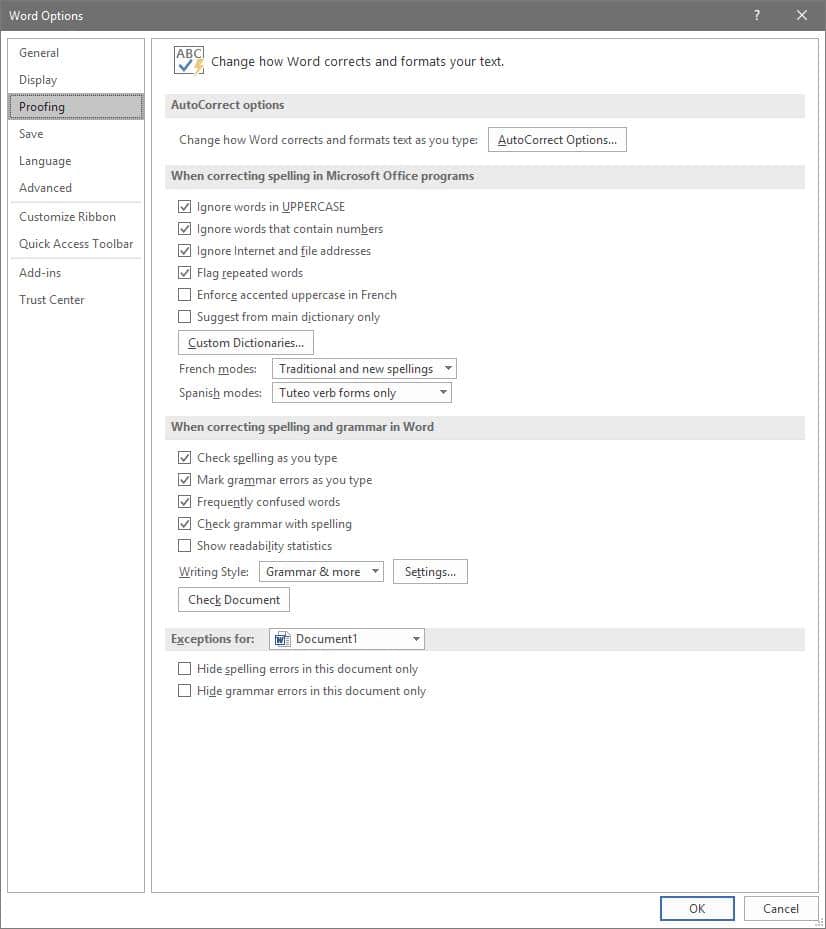
To access these rules, select File, and from there, Options. A new window should pop up with a Proofing option in the list. That page looks like this:

Adjusting AutoCorrect

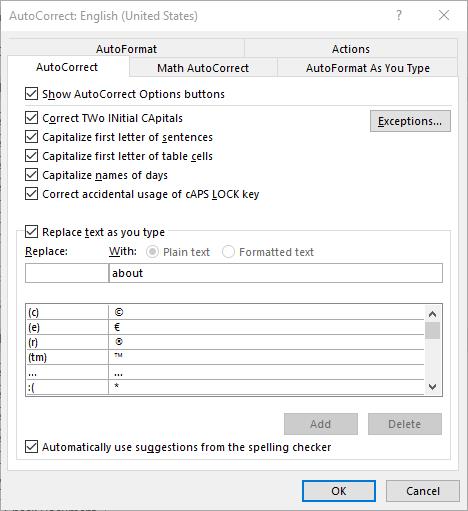
Here, you can alter a variety of proofing options, including your AutoCorrect Options. Clicking that button will present you with another window.

This window allows you to set your AutoCorrect rules, identify any exceptions you might want to make, and review how misspelled text can be automatically revised.

Establishing Grammar Rules

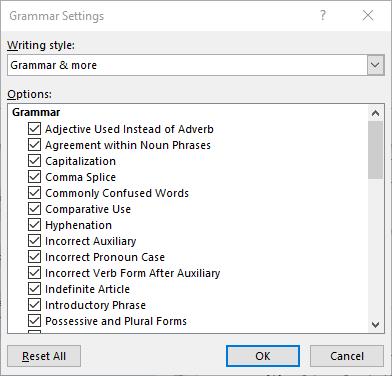
Returning to the Proofing List window, you also have other options that allow you to adjust Word’s corrections. For instance, clicking the Settings... button under When correcting spelling and grammar in Word provides another window. From here, you can control which grammar rules Word will flag or ignore in your copy.

Stop Worrying About Word Changing What You Write

By implementing these changes, you can prevent small annoyances from interrupting you as you work with Microsoft Word. This way, you can accomplish more without having to worry about dealing with automatic corrections again.

For more tips on how to best leverage your solutions to save you valuable time and money, subscribe to our blog!

Continue reading

How You Can Get Microsoft Office Certified


Why You Want An MOS (Or Any Other) Certification
The more your internal staff can handle, the less they have to lean on others for assistance.

Chances are, these “others” would be the members of your internal IT team (assuming that you have more than one person in the first place). Otherwise, they’ll likely spend a bunch of valuable time trying to Google the answer to their question.

Therefore, it only makes sense to have your staff be capable of as much as possible independently, without the need to turn to someone else or an Internet search. That way, everyone’s time is used more efficiently, maintaining productivity and allowing everyone to focus on what needs to be done.

When a solution is as commonly used as Microsoft Office is, this only becomes even more evident.

Certifications are effectively seals of approval from an authority. If someone was to be certified as a Microsoft Office Specialist, it more or less is just proof provided by Microsoft that this someone does indeed know their stuff when it comes to the Office software suite. Having certified people on staff means that a business is able to handle more advanced situations.

The Operational Benefits Of A Microsoft Office Specialist
Microsoft’s productivity software titles are among the most commonly used in the business world, to the point where many of their applications’ names are now synonymous with the documents they produce - how often have you heard someone call a presentation a “Powerpoint” instead of a “slideshow?”

As a result, chances are fairly high that your business is one that uses at least one of the applications included in the “Microsoft Office” suite.

Like we said before, a lot of time can easily be wasted trying to do something in an Office program, especially if the person is having difficulty remembering how to perform a task that they do not need very often, or have never encountered before.

However, if your team has a few Microsoft Office Specialists on it, they would be able to assist with a quick message, reducing the stress put on your IT staff and allowing them to continue their other duties without interruptions coming in (at least, interruptions from Microsoft Office requests).

How to Become Certified
To learn more about this certification, visit Microsoft’s official page describing it. The official test is exclusively administered by Certiport testing centers, who provide a useful test center locator to help you figure out where and when your next testing opportunity is.

To otherwise assist your staff with their technology issues, and take some more of the workload from your internal IT staff’s shoulders, Coleman Technologies is here to help. Reach out to us at (604) 513-9428 to discuss our solutions with one of our professionals.

Continue reading

Microsoft Defender: An Example of Why Consumer-Grade Security is Not Enough


Microsoft Defender: An Example of Why Consumer-Grade Security is Not Enough

Windows Defender is Microsoft’s own antivirus solution, and it comes bundled with Windows, so it’s confusing to think that a business would need to pay for it, right? Well, there are actually two separate products called Defender, with a big difference between them.

Sometimes, the most challenging part of picking solutions for your business is deciphering their often-obscure naming conventions. We’ll admit, Microsoft’s naming conventions for some of their products are a little confusing, so let’s try to make sense of one of their products, Microsoft Defender.

Of course, confusion is the last thing you want for your network security, which is what we’re getting into with today’s article. Consider the difference between Windows Defender and Microsoft Defender for Business as a perfect representation of this.

Explaining Windows Defender

Windows Defender is an antivirus software that comes with your Windows 11 operating system. It’s also preinstalled on Windows 10 PCs. It’s so under the radar that most users likely don’t even know it’s there. Microsoft has started to refer to this tool as Microsoft Defender, just so you are aware.

Of course, you get what you pay for with network security tools, but even the quality of free cybersecurity software has varying levels of “bad” to consider. We’re happy to report that Windows/Microsoft Defender is at least usable from the average user’s perspective. It’s better than not having any protection at all and definitely better than some other free tools that bombard you with advertisements and subscriptions.

Windows Defender is perfectly good enough for the average user who doesn’t use their computer for business purposes. It’s fine for a college student’s laptop to do their homework on, and it’s fine for most people who use their computer for simple tasks like watching videos and sending emails. 

But it’s not ideal otherwise. Windows Defender doesn’t do much to stop phishing attacks or ransomware; it also doesn’t cover other web browsers, like Firefox or Chrome, sticking you with Edge if you want to take advantage of the most protection possible. That said, Windows Defender has a firewall that can block malicious URLs and run malware scans. It’s a fine solution for free but not the best you can do. Why not?

The reason is simple: it’s not designed for businesses.

Microsoft Defender for Business

Microsoft Defender is meant for use by consumers, whereas Microsoft Defender for Business is designed for businesses. It can support organizations of up to 300 users, after which Microsoft has higher-end enterprise solutions like Defender for Endpoint, Defender XDR, and Microsoft 365 for Enterprise.

As you might expect, Defender for Business has more power to it than your average consumer version. It works on various platforms, including Windows, Mac, Android, and iOS/iPadOS. You can also protect Windows or Linux servers.

Microsoft Defender for Business has central controls for admins to adjust security as needed. With these controls, an admin can ensure that all systems are properly protected, run scans, or change settings for the entire network.

Unsurprisingly, this solution is more all-encompassing than the consumer version, so if you’re dead-set on Defender, we recommend going for the business-grade version. It works to protect your organization from cybersecurity attacks, including malware and viruses that home users need to worry about, while also covering the more advanced threats that target businesses. It also covers remote employees, which is a huge benefit in today’s ever-flexible work environment.

Microsoft Defender for Business offers the comprehensive protection you expect from a business-grade solution, whereas the consumer-grade product does not.

Don’t Use Consumer-Grade Products for Your Business

The big takeaway we have for you here is that businesses should not use consumer-grade products. They do not offer the same level of service, scope, and security necessary for business-level operations. This statement applies to all business-grade products, whether you’re looking at a security solution or a productivity suite.

Coleman Technologies can help you make the right decisions regarding the security of your network. Learn more by calling us today at (604) 513-9428.


Continue reading

Using Windows PowerToys Might Give You the Edge You Need


Using Windows PowerToys Might Give You the Edge You Need

Microsoft’s operating systems have been around for a long time, and since Windows 95, Microsoft has published free utilities that can help users make slight adjustments to their operating systems to suit their needs. Microsoft PowerToys are even available now, and we want to explore what they can do for your business, as well as how you can acquire them.

We’ll be delving into what PowerToys can do for users of Windows 10 and Windows 11 today.

What Can PowerToys Users Do?

This is only a small sampling of what PowerToys can do for you. We’ve curated this list for ones that you are most likely to use in a business setting.

Shortcut Guide

While this tool is activated, your Windows Key can be used to provide a list of available shortcuts. If you hold it down, native shortcuts in your active window will display. It’s a great way to see at a glance just what utility is at your fingertips.

Keyboard Manager

PowerToys also lets you adjust your own preferences, including how your device reads your keystrokes. You can replace some shortcuts with others, for example. Just keep in mind that you’ll need PowerToys to remain active in the background if you want your changes to stay applied.

FancyZones

FancyZones lets you keep your desktop and applications better organized, dividing your display into various zones that retain information on display configurations and other settings, allowing you to keep things consistent.

Text Extractor

PowerToys also lets you extract text from anywhere on your screen, including things from images, videos, and the like. It might not always be perfect, so it will need some oversight on your part, but it’s a nifty tool nonetheless.

Always On Top

You will always have applications which you would prefer to be on top of the stack, and this PowerToy allows you to make that happen easily. It will keep your specified window open above the others so it’s easy to get back to, as long as you have it activated. You can customize the shortcut for this feature and turn it on or off at will.

Discuss PowerToys with Your IT First

We know that it can be fun and exciting to play around with new features, especially if it’s your idea to make things better and more streamlined, but we always encourage you to consult your IT first before making any drastic changes to your operating system. PowerToys would have to be downloaded from the Internet, and as such, it could be subject to a threat of some sort. We recommend that only IT download or install any applications on your workplace devices, or an outsourced IT provider like us.

While security is one reason for this, the other is that you want to test any applications you want to install before you actually follow through on the installation to make sure that nothing breaks. There’s also the chance that you could be downloading malware or bootleg copies of the software, and no one wants to be caught with pirated software!

Plus, there’s always the possibility that you already have tools out there that accomplish the same task installed on your infrastructure, or there might be better alternatives to your proposed solution. IT can open your eyes to the possibilities while respecting your desire to make operations and processes better.

Want to get started with IT management from Coleman Technologies? It’s simple! All you have to do is call us at (604) 513-9428.

Continue reading

The Time Has Come for SQL Server 2008 and 2008 R2


Outdated software is an issue that all businesses have to deal with. The fact that so many organizations don’t routinely update their software solutions is pretty telling. For one, many businesses simply don’t have the resources at their disposal to make sure maintenance is performed on a regular basis. Granted, unless a business has taken substantial steps toward upgrading away from software that has reached its end of support date, they will have to suffer the consequences.

What Does “End of Life” Mean?

End of Life, also known as End of Support, is a term that is used to identify software that is not updated or patched after a specific period of time has passed. Certain Microsoft products can utilize the Extended Security Update, but only for a maximum of three years, meaning it’s more efficient and cost-effective to upgrade away from your old systems before they reach the end of support date.

What You Need to Do

How would your business be affected by a potential security breach? Since you won’t be receiving security patches or updates, you’ll need to consider this possibility. Following a major security breach, you’ll be forced to upgrade your systems anyway, so not only will you have those costs, but you’ll have to deal with the fallout of a data breach. It’s never too early to start taking preventative measures and think about the future of your infrastructure, as well as who will be responsible for the management, maintenance, and upgrading of your business technology.

Before Windows SQL Server 2008’s End of Support date arrives, consult this list of upcoming end of support dates and take the necessary steps to upgrade your technology. It’s better to do so now than wait until it’s too late.

We Can Help

Worrying about your business’s IT infrastructure is something that you simply don’t have time for. A managed service provider like Coleman Technologies can help you achieve affordable and accessible technology support, including the updates and patches needed to maintain network security. We can even help monitor your infrastructure for potential End of Support software that will soon be outdated. To learn more, reach out to us at (604) 513-9428.

Continue reading

Tip of the Week: Making Microsoft OneDrive Work for You


For context, it helps to know that Microsoft OneDrive is a cloud storage platform that just about any business could make use of, regardless of its size. After all, any size of business will have to remain organized.

Speaking of which, our first tip covers how OneDrive can make this organization super convenient for you.

OneDrive Files On-Demand

Files On-Demand gives your users the ability to effectively link their File Explorer to OneDrive, which enables them to work with files found in your OneDrive without downloading all of them to their device. Not only does this save real estate in the device’s storage, it allows work to continue offline through a simple proactive switch in a particular file’s settings.

Known Folder Move

OneDrive can also work as a simple backup option, although it certainly should not replace a comprehensive plan. Regardless, Known Folder Move allows users to have the contents of certain folders automatically synchronize with their OneDrive storage. This can be set up during the initial installation of OneDrive, or at any time you have need for it.

Integration with Microsoft Outlook

Consider what typically happens when you try to share some kind of Office document as an email attachment for someone to work on: you aren’t sending them access to your file, you’re simply sending them their own copy. OneDrive fixes that by enabling a user to share their files as though they were attachments, editing the permissions provided on the fly. As a result, the actual file is being collaborated on, really allowing work to be done.

What has been your experience using OneDrive? Share your impressions, as well as any other questions we can help with, in the comments!

Continue reading

Tip of the Week: How to Control File Sharing in OneDrive


In OneDrive, a user can share a singular file or folder pretty easily. All they have to do is log in, right-click on the file/folder, and click Share.

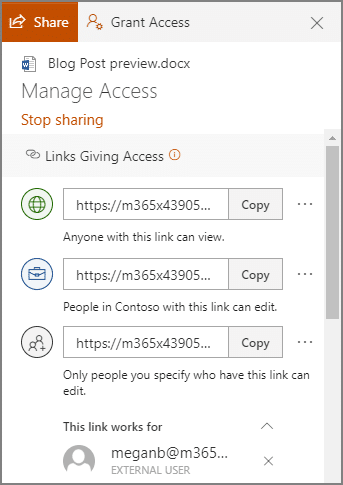
Sharing this way allows a user to share their content with one of their contacts, send it to an email address, or copy a shareable link and send it along through an instant message or, again, and email. Doing so gives the recipient access to make edits to it by default, but the sender can restrict them to read-only access if desired.

However, you probably don’t want to micromanage your entire team to make sure they are sharing files and folders with people actually authorized to receive them. Fortunately, by using the global settings of OneDrive, you can take control past the file/folder basis to control how a user can share documents.

Controlling a User’s File Sharing in OneDrive

Assuming that you have administrative access over your OneDrive account, sign in by visiting https://admin.microsoft.com/ before proceeding with the following steps:

  •  Look for Admin centers on the left side of your display. Click SharePoint.
  • You should then be directed to the new SharePoint admin center. If you are brought to the old one, you can go to the new on by clicking on Open it now.
  • Again, on the left side of the screen, find Policies and click on Sharing.

Doing so means that you have edited the global settings, applying your changes to all accounts. To manage settings on a case-by-case basis, access Users, Active Users, and select the individual who you are attempting to manage. You should find a OneDrive tab, with adjustable Sharing options.

With privacy and security being so critical for contemporary businesses, you need to make sure you are doing everything you can to maintain control of your company’s information. Our security experts can help - reach out to us at (604) 513-9428 to get started.

Continue reading

Microsoft Releases Rare Bug Fix Off of Regular Patch Schedule


The two vulnerabilities were patched off of Microsoft’s typical “patch Tuesday” due to the urgency. Most Microsoft patches are released on the second Tuesday of the month. The fact that these two were released ahead of time might seem like an insignificant occurrence, but the reality is this event is a major red flag.

Internet Explorer Zero-Day

The most significant patch was for a zero-day vulnerability that was found in Internet Explorer. It may be hard to believe, but people are indeed still using this antique browser to surf the web. The term zero-day suggests that the vulnerability that was discovered, had already been exploited by ill-minded cybercriminals. 

While not much information has been released on the event, Microsoft did call it a remote code execution exploit that, if accessed, could have given a user control of another user’s account. The attack requires phishing someone who is exploring the internet on Internet Explorer, and luring them onto a malicious website. Once there, an attacker would be able to gain access over the victim. 

Internet Explorer is such a forgotten browser that the event did not spark a lot of controversy. This is largely due to the fact that Internet Explorer makes up just two percent of the active market share. However, for the relatively small amount of users that continue to surf, an event like this is still a huge disaster. 

Microsoft Defender DOS Bug

The second patch that Microsoft expedited was a denial of service vulnerability in Microsoft Defender. The antivirus program comes standard in all Windows 10 PCs, and truly is the core of Windows 10’s sterling security record. 

The bug that was discovered wasn’t necessarily obvious, or easily exploitable. In order to do so, the attacker would need the ability to read, understand, and write code. Doing so would allow them to disable Windows Defender components, giving the attacker access. This would give them free rein to do whatever malicious act they chose to deploy. 

Patches aren’t optional. If you are worried about your business’ vulnerability, speak to one of our experts at Coleman Technologies. We have the know-how to keep your software up to date. Give us a call at (604) 513-9428 today! 

Continue reading

About Coleman Technologies

Coleman Technologies has been serving the British Columbia area since 1999, providing IT Support such as technical helpdesk support, computer support and consulting to small and medium-sized businesses. Our experience has allowed us to build and develop the infrastructure needed to keep our prices affordable and our clients up and running.

get a free quote

Understanding IT

Get the Knowledge You Need to Make IT Decisions

Technology is constantly evolving, and keeping up can feel overwhelming. Whether you want to understand cybersecurity threats, explore automation, or learn how regulations like PCI DSS impact your business, we’ve made it easy to access clear, straightforward insights on key IT topics.

Insights to Understanding IT

Contact Us

20178 96 Ave C400
Langley, British Columbia V1M 0B2

Mon to Fri 7:00am–5:00pm

[email protected]

(604) 513-9428

Coleman Technologies Awards & Memberships

Image
Image
Image