Coleman Technologies Blog

Coleman Technologies Blog

We can give your organization comprehensive IT services and 24/7/365 live support for a predictable monthly fee. Stop stressing about technology, and start focusing on growing your business.

The New Version of Chrome has Interesting Changes


Extension Restrictions
One of Chrome’s largest advantages over its competition has to be its library of add-on extensions. Unfortunately, any kind of functionality with these additional “programs” can lead to security concerns. Google has had to slow down the production of extensions to create new requirements for developers to adhere to. One example is how cryptocurrency continues to be a major talking point, prompting extensions to include cryptocurrency mining and cryptojacking in their features. Google is shutting down these supplemental programs, as well as generally holding developers to higher standards than they previously were. It now demands that developer accounts be protected by two-factor authentication, as well as paying closer attention to apps that require lots of permissions or host their code remotely.

Security Measures
Chrome 70 is also packing in all kinds of new security features to keep phishing attacks away from end users. In particular, Chrome is trying to push education of its native password management tools, as well as warn users when the links they are about to access aren’t secure. In essence, this simply states that websites need to be secured if they want visitors, reinforcing the fact that websites need to prioritize security these days.

Login Concerns
While some changes have been accepted with open arms, others… not so much. While Chrome has allowed users to use the browser without logging into the browser, some have noticed that Chrome appears to log a user in, even if they are only using one service out of the many provided. This is primarily an issue because Google could potentially share the user’s data (think browsing history), which is not something that users traditionally take lightly. In the time since then, Google has announced that Chrome isn’t necessarily logging users into Chrome--it’s more of an in-between measure to show a user which of their accounts is currently logged in.

As with any new solution, there will be roadblocks and concerns that users might be faced with during the experimentation phase. What kind of experiences have you had with Chrome 70 so far? Let us know in the comments.

Continue reading

What Search Engine is Truly the Best, Part 1


What Search Engine is Truly the Best, Part 1

Even if you lived under a rock, you’ve probably done a Google search or two. There are, in fact, other search engines, each with their own pros and cons. We’re going to compare some of the most popular search engines and talk about what makes them different.

Google is By Far the Most Popular Search Engine on the Planet

At the time of writing this, it’s calculated that every single second, a search is performed on Google 99,000 times. That adds up to 8.5 billion searches every day. It’s predicted that more than 92 percent of all internet searches are done on Google, but it’s possible that number is even higher.

Either way, people all over the world are more likely to say “I’ll just Google it” instead of “I’ll just search the web.”

You don’t hear anybody say “We’ll let me just Bing that,” and use Google’s closest search engine competitor, which handles about 3.5 percent of all searches, worldwide.

So what makes Google so special?

Accuracy.

Google is extremely good at giving you accurate results based on what you are looking for.

Google uses hundreds of different signals to determine what should and shouldn’t come up when you search for something, and it does it all within half a second or so, while sifting through over 30 trillion web pages to give you the best results possible.

Is it perfect? Of course not.

Can Google be tricked? Eh, sometimes. People are always trying to get their websites to rank for certain terms. This process is called Search Engine Optimization (SEO). This is a legitimate process for businesses trying to compete against their competitors on the search engines, but it can lead to bad, misleading, or undesirable results showing up on the search results page. That being said, Google is good about making it very difficult to manipulate your ranking without actually putting in a lot of hard work, so it’s less likely that inaccurate results will show up compared to the other search engines.

Still, Google tends to get you to the best result, and it gets you there the fastest.

Google Searches are Custom-Tailored to You
Here’s the other really cool thing about Google. Everyone’s search experience is a little bit unique to them. Google takes a lot of context into consideration, including your location, your past search history, the device you are on, and other information that Google knows about you, and provides curated results.

This means when you are traveling, as long as the device you are using knows its location and is letting Google know this info, you can search for a pizza place and get localized results. Google takes a ton of data points into consideration for every single query.

This isn’t always a good thing though.

Studies have been done in the past that show that Google’s search engine can sometimes contribute to a filter bubble. While this is much more common on social media platforms like Facebook and Twitter, the same can apply in some ways to Google searches.

Think of it like this. If you surround yourself with people who, for instance, truly believe that the moon is made out of cheese, you might start to see more and more information about the cheese moon than you did before. Your newfound cheese-moon friends will share news articles about how the moon is cheese. They will share memes and come up with silly nicknames for cheese-moon non-believers (like Non-Brie-lievers). They will get into fights on social media about whether the moon is more like Mozzarella or more like Gorgonzola. They will claim that all the non-brie-lievers are trying to shutter and bury any facts about how the moon is made out of cheese by sharing peer-reviewed articles from “fringe” agencies like NASA.

The point is, this creates sort of a bubble effect based on the way content algorithms work. If a platform like Facebook or Google knows that you’ll spend more time using them by keeping you happy with all the cheese-moon-affirmational content your heart desires, it’s going to be a little less accurate. If you spend a considerable amount of time seeking out results based on any particular filter bubble you are in, platforms like Google will likely curate some results that keep you trapped inside that filter bubble.

The trouble is that you won’t mind, your opinion about the cheese moon isn’t going to change, and everything you use online is helping you affirm this.

So yeah. Google is neat, and generally accurate, but it has been proven that sometimes it can go a little too far for some people. Over the last few years, Google has taken major steps to find a balance, which is actually the main reason Google doesn’t have the 98 percent market share it used to. Many folks have walked away from Google simply because it started to cater less to their fringe beliefs when it comes to hot button issues.

What are the Alternatives?

Now that the Big G is out of the way, in our next blog, we’re going to go over some of the alternatives. Be sure to stay tuned to our blog and social media.

Continue reading

Chrome Adds Color Coded Tabs and We’re So Thankful


Adding More Organization Into Your Chrome Browser

Admit it, you have a tendency to use too many browser tabs. At any given time, you may have 5-10-20 browser tabs open. If you use more than one screen, it could be more. Way more. Most users use their Chrome browser for so much of your online life that you hardly pay attention. Then you wonder why your PC is running slow. The truth is people use a lot of browser tabs, and they are better off for it. 

Google, knowing their users’ behavior better than most companies has come up with a new feature that will allow you to assign a certain color to a browser tab and then group them together with like-colored tabs. This feature will be rolled out to users in this update

The update should be coming this week, but it will hit everyone at different times (Google is deliberate about their updates). You may already have the feature in your Chrome browser. When it does come it will be as a default browser update, and will be a change for all Chrome users. All you will need to do is right-click on tabs, group them together, and assign a color.

Are you a tab-hoarder, or a tab-minimalist? Is this feature going to help you? Leave your comments below and be sure to return to our blog for more great information about technology.

Continue reading

Microsoft and Google Offer Work Profiles


Microsoft and Google Offer Work Profiles

Both Microsoft and Google offer work profile solutions that are designed to separate personal and professional use on mobile devices. These profiles are commonly used in enterprise settings to enhance security and manageability while allowing employees to use their personal devices for work-related tasks. Here's an overview of work profiles from Microsoft and Google.

Microsoft's Work Profile

Microsoft Intune

Microsoft's solution for managing work profiles is often integrated with Microsoft Intune, a cloud-based device management service. Intune allows IT administrators to control and secure corporate data and applications on devices running Microsoft's operating systems, such as Windows and Android.

Android for Work

Microsoft also supports Android for Work, which is now known as Android Enterprise. This is a set of features and APIs built into the Android operating system that allows organizations to create and manage work profiles on Android devices. Microsoft's Intune integrates with Android Enterprise to provide advanced management capabilities.

App Management

With Microsoft's work profile solutions, IT administrators can manage and deploy corporate apps to the work profile on a user's device. They can also control app access, data sharing, and other security-related settings.

Separation of Personal and Work Data

Work profiles on Microsoft-supported devices keep personal and work data separate. This separation ensures that work-related apps and data are isolated from personal apps and data, enhancing security and privacy.

Google's Work Profile

Android Enterprise

Google's work profile solution is primarily based on Android Enterprise, which provides a range of tools and policies for managing Android devices in a corporate environment. Android Enterprise supports several deployment modes, with the work profile being one of them.

Work Profile

In the context of Android Enterprise, the work profile is a container on the device that separates work-related apps and data from personal ones. Users can switch between their personal and work profiles, and IT administrators have control over the work profile's security settings.

Google Workspace Integration

Google's work profile solution integrates seamlessly with Google Workspace (formerly G Suite). This allows organizations to manage email, calendar, and other Google Workspace apps within the work profile.

Security and Compliance

Google offers various security features, such as remote wipe, encryption, and app management, to ensure that corporate data within the work profile remains secure. IT admins can enforce policies to protect sensitive information.

Both Microsoft and Google offer work profile solutions to meet the needs of organizations looking to enable a bring your own device (BYOD) policy while maintaining security and control over corporate data. The choice between the two often depends on the specific needs and existing tech ecosystems that your organization uses.

If you would like to learn more about work profiles and how they can be used to protect your business’ data, give the IT professionals at Coleman Technologies a call today at (604) 513-9428.

Continue reading

Tip of the Week: How to Create an Email Group in Gmail


Tip of the Week: How to Create an Email Group in Gmail

Email groups are remarkably useful. Instead of sending a copy of an email to each individual recipient, you can effectively create a simple forum post that everyone can participate in—a feature that certainly helps when collaboration is a priority. Let’s go over how you can quickly and easily create a group in Gmail.

Step 1: Access Google Apps and Select Contacts

That’s right—this process isn’t even completed in Gmail. However, since you’re likely in the Gmail app, click into the App Launcher icon (colloquially, and arguably more correctly, known as the “waffle” icon) and access Google Contacts. A new window will open to the Google Contacts page.

In this new window, you’ll see the Google Contacts page, and if you click the three-bar menu, you’ll see a selection of tools and options.

Step 2: Create a Label

In these tools, you’ll see a Label option, and underneath that, the option to Create Label. Give it a name you will remember it by, and click Save. You now have a label, and it’s time to add some contacts to it.

Step 3: Add Some Contacts

You’ll see lists of your email contacts by selecting Frequently Contacted or Directory. Select whomever you want to include in a group, finally clicking the label icon at the top of the window. Confirm that the right label is selected, and select Apply

That’s it! Now, from Gmail, you can put the name you gave your label into the To field of any email you’re writing to send it to that group.

Hopefully, this will come in handy for you moving forward. Keep checking back for more handy IT tips, and if you want assistance in managing it all, give Coleman Technologies a call at (604) 513-9428 to learn a bit more about what we do.

Continue reading

What Search Engine is Truly the Best, Part 2


What Search Engine is Truly the Best, Part 2

Last time, we started our discussion on the best search engines by talking about the behemoth, Google. While Google is, by far, the most popular and commonly used, and arguably the most accurate search engine, it doesn’t mean it’s always the right search engine to use. Let’s talk about some other alternatives and see where they might fit in.

Microsoft Bing - Kind of the Same, but Different

Bing gets the silver medal for being the world’s second most popular general search engine. Even so, it only gets about 3.5 percent of the world’s internet searches. 

Bing is also the most similar to Google, at least as far as how it works under the hood. It’s focus is on providing accuracy and uses anonymous information from you and your search history to curate the results.

Whereas Google takes a very minimalistic approach to search, Bing usually has a visual treat for its users everyday. Each day, Bing decorates the background of its search page with a photograph with a little snippet of information about the photo. It might be some event happening somewhere in the world, a rare animal from a rainforest, a historical photo, a beautiful skyline, or literally anything else. No, it’s probably not what you were looking for, but it is kind of neat.

But on top of that, Bing also throws curated headlines, local weather, and sponsored posts right at you too. You’ll either love it, hate it, or have no feelings about it. Either way, the first impression you’ll have with Bing is that it’s busier, even before you do a search.

Something we didn’t mention last time when talking about Google—Google uses a mobile-first approach. That means sites that load well on mobile devices tend to get prioritized on Google. If your website is old and doesn’t scale properly for smartphones and tablets, you’ve probably noticed a drop in traffic over the last several years—this is why.

Bing doesn’t really care about this, but it also indexes a much smaller number of pages than Google, so the results are going to be pretty different. If you are looking for images or videos, Bing also has more options for filtering and displaying information, so it slightly outperforms Google there.

The user experience with Bing isn’t horrible, it’s just different. If you are used to using Google everyday, the transition to Bing will just feel a little strange, but it’s a decent alternative, and making the switch for a week or two is a fun experiment. We’d love to hear what you settle on.

Duck Duck Go - The Private Search Engine

Most popular search engines collect user data to curate search results. For instance, Google uses it to improve the results it gives you. Google also uses that data to help advertisers make informed decisions.

First and foremost, this data collection probably isn’t going to hurt you. It’s definitely a little weird to think about, but in the long run, it’s not necessarily tied to you as a human being. Let’s put it this way:

Let’s say, in the course of a week, three thousand people do a search for “soda,” two thousand people do a search for “pop” and a thousand people do a search for “coke.” Of those six thousand people, you are somewhere in there, looking for a soft drink. Google gathers this level of data to tell advertisers what words people use to look for certain types of products. Those advertisers can then make the decision on how they word their ads and what terms they pay money for. The data is, more or less, anonymous. Not every single company works this way (Facebook and Zoom have had data privacy scandals involving personally identifiable information), but that’s generally the gist of how this information gets used.

It’s not all sunshine and rainbows, however, and some people have just decided to take more steps to be as anonymous as possible online, and Duck Duck Go is a good search engine for those who don’t want Google to know what they are looking for.

Duck Duck Go will give you totally different results from Google and Bing, but it doesn’t use any information about you, anonymous or otherwise. It also does little to warn you when something is fraudulent. Don’t get us wrong, you can run into scams, malware, and other threats from Google results, but Duck Duck Go has fewer layers of protection. 

It also means the results aren’t going to be as localized. Looking for a nearby restaurant will only base your location on the location of your Internet Service Provider, so it might not be as accurate.

All that said, Duck Duck Go is a relatively safe option, and if you are uncomfortable with Google knowing what you search for and using that to curate your results, it’s a pretty solid solution.

An alternative to Duck Duck Go that follows a similar privacy philosophy is Qwant, a French search engine that doesn’t collect user data.

Which Search Engine Is Right For You?

It’s pretty unlikely that another search engine is going to topple the big G, but if you are more concerned about your online privacy, Duck Duck Go or Qwant are pretty good solutions. As with anything, you should always be mindful of what information you are giving up, and be careful what you click on. Even if the search engines themselves are safe, the websites they point to might not always be secure.

Continue reading

Have You Applied the Recent Chrome Patches?


October saw five vulnerabilities patched in Chrome, with two of those vulnerabilities being classified as zero-day threats. A zero-day threat is an attack that is already being used by cybercriminals by the time security researchers identify it. With the head start that the zero-day threat gives them, these cybercriminals have a dangerous advantage.

To add to the issue, two of these zero-day threats were also identified as high severity attacks, one taking the form of a JavaScript engine phishing attack and the other in a corruption vulnerability in one of Chrome’s features. While further details are scarce, the Department of Homeland Security’s Cybersecurity and Infrastructure Agency (CISA) have warned us of their significance and their capability to assist an attacker in taking over an infected system.

Both threats have been spotted, so CISA is officially encouraging that all patches be applied, and updates made, to resolve these threats.

What Makes Updates So Important?

Let me ask you this: let’s say that your office’s front door would no longer lock securely. Would you leave it alone in the hopes that nobody would mess with it, or would you prioritize having the lock fixed?

This is the situation that business owners now find themselves in, and far too many of them simply hope that it won’t be a problem. Consider the fact that Google released a patch for one of these vulnerabilities via an update, but only half of users applied the update within a day.

Regardless of whether this is due to negligence or the possibility that the device they are using is simply outdated, this suggests that many companies are leaving their vulnerabilities exposed.

Coleman Technologies can help through our managed services, as we’ll ensure that your technology is patched and fixed appropriately. To learn more about our services, or to find out how else we can assist you in securing your business’ IT, reach out to us at (604) 513-9428.

Continue reading

Tip of the Week: Reopening Closed Chrome Tabs and Windows


Tip of the Week: Reopening Closed Chrome Tabs and Windows

How often does this scenario happen to you? You’re going about your workday and are being quite productive, when all of a sudden you close the wrong tab in your web browser, putting an end to your productivity. This isn’t crippling downtime or anything, but it’s an inconvenience that we know you can do without. Thankfully, modern web browsers let you reopen closed tabs or windows to get back to where you left off.

How to Reopen a Closed Tab or Window in Google Chrome

For the purposes of this tutorial, we’ll use Google Chrome for our examples, but know that the other popular web browsers have similar functionality, and the process is similar if not identical to perform the same tasks.

First, close out one of your other web browsers. Go ahead, do it. We’re confident you can get it back, as long as you’re not filling out a form or there is other sensitive content on it that must be re-entered. After you’ve closed the tab or window, right-click the Plus icon as if you were going to open a new tab. You’ll see an option for Reopen Closed Tab. This will reopen the last closed tab, just like it says. You can even do this multiple times for multiple tabs, too.

For a quick reference, you can use the keyboard shortcut as well: Ctrl + Shift + T.

Reopen a Closed Window in Google Chrome

But what if you accidentally close the entire window without realizing it? Thankfully, Chrome has functionality for this, too, and it’s just as simple. Go ahead and open up a new window for testing purposes. Next, close out of it by clicking on the X button in the top right corner of the window. Go back to your current browsing session and right-click the tab bar at the top of your screen. If the last thing you closed was a different window, you’ll see the option for Reopen Closed Window. Go ahead and click it. Your closed window should reappear.

The keyboard shortcut for this is just as easy: Ctrl + Shift + W.

That’s all there is to it! It’s a simple but helpful tip to be just a little more productive with your day.

What other tips would you like to see us write about on our blog? Let us know in the comments, and be sure to subscribe.

Continue reading

Tip of the Week: What Google Lens Can Do


Explaining Google Lens

Downloadable from the Google Play Store, Google Lens is a utility app that incorporates artificial intelligence to make your smartphone’s capability to take and store images even more useful. With Google Lens, your phone can identify the elements in an image and give the user in-depth and contextual options based on it. Let’s say you wanted to find out what the flowers were that someone had planted outside their house. Using Google Lens, you could point your camera at the flowers and identify them that way.

Now, just consider how this could be applied to the modern, mobile workplace:

Copy and Paste Real-World Text

The ability to copy and then paste content is one of the most often-used functionalities in the office, so why not bring it to the physical world (sort of)? Using Google Lens, you can capture text with your camera from any media just as though it was content on a website. Simply press on the desired text to select it, press the Copy button at the bottom of the screen, and there you are. This text can then be shared directly to the clipboard of any computer with the same Google account actively logged in.

Extract Contact Information from a Business Card

While business cards are a great way to build business relationships at networking events, they don’t exactly fit in with most of today’s business environment. Lens can fix that by capturing the details printed on the card and giving the user various options. Whether you want to call the contact shared on the card, visit a website printed on it, or send a quick text or email message, Lens makes it simple to do so.

Create a Calendar Event

While calendar events are a great way to keep one’s schedule organized, helping one fulfill their obligations, they can become arduous to input into a mobile device. Google Lens can automate that process, pulling the necessary information from a flyer, an appointment card, or any other media and giving the user the option to Create calendar event.

Of course, this has been but a brief sampling of Google Lens’ capabilities. We encourage you to download it and see how much it helps you. If you’ve used Google Lens before, let us know how it worked out for you in the comments!

Continue reading

Google’s AI Sees (and Understands) a Lot More Than You’d Expect


PersonalSetting

Would you be concerned if someone, with only an image, could infer things about you with better-than-expected accuracy? I don’t mean snippets, either—we’re talking about entire paragraphs of context.

Probably, right?

How concerned would you be if I told you that’s precisely what Google Photos does?

Let’s examine the research experiment that a startup photo storage and sharing service—founded by a former Google software engineer, no less—is presenting as an interesting bit of marketing.

Vishnu Mohandas’ Role at Google Gave Him Concerning Insights

A self-taught programmer, Mohandas was alienated by the tech enterprise when he learned that Google used AI to help the United States military examine drone footage. As he left the company, he also left its services behind.

Mohandas had realized that Google could very easily draw on the data stored in its cloud services to help train its AI further. This would include Google Photos.

When he left, Mohandas created a service he dubbed Ente, which would function as a privacy-first photo storage and sharing subscription. While Ente does generate profits, it has been challenging to convince people to shift from a convenient, free option to a paid service.

However, one of the company’s interns (as so often seems to be the case in stories like these) had an idea: why not show people exactly what Google’s AI could glean from your photos?

Hence, theyseeyourphotos.com was born.

Theyseeyourphotos.com Demonstrates What Google Can Do

By replicating the process that Google undergoes as it examines an image, Ente created Theyseeyourphotos.com to allow users to securely upload their own images to see what Google’s AI instantly interprets.

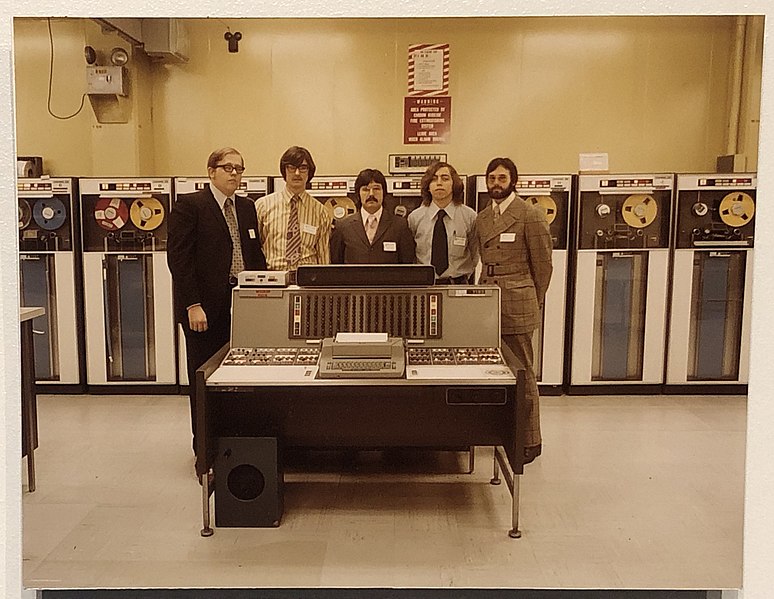
So, let’s say we were to upload the following image…

…They See Your Photos produces this result:

“The photograph shows a group of men standing in what appears to be a 1970s-era computer room. In the foreground is a large piece of computer hardware, possibly a mainframe console, with various knobs, buttons, and displays. The background features several large cabinets, likely containing tape drives, characteristic of computer systems from that era. The walls are a muted yellowish color, and there's a sign visible on the wall, indicating safety procedures or warnings. The floor is a light-colored tile, typical of institutional settings.

The men appear to be of Caucasian descent, likely colleagues in a professional setting given their attire. They are all dressed in business-casual clothing, with ties and suits. Their expressions are serious and somewhat formal, suggesting a professional portrait. They appear to be in their 20s and 30s. Based on the clothing and technology, their economic status is likely middle-to-upper-middle class. They seem to be involved in the operation or maintenance of the large computer system. The photograph was likely taken with a professional-grade camera considering its sharpness and composition. The picture appears to be from the mid to late 1970s.

The photo is subtly composed to emphasize the technology, positioning the men slightly in front of the equipment. There is a small speaker on the floor near the main computer console. The men are not all equally spaced; some subtle variations in stance and positioning can be seen on closer inspection. The overall image quality suggests an older photograph, perhaps printed from a film negative.”

All that, from one image. Imagine how much information could be gleaned from an entire collection.

We encourage you to give Theyseeyourphotos a try. However, despite their promises and philosophies, do not use anything you wouldn’t be comfortable having on the Internet.

What Does This Mean?

First of all, this is not an advertisement for this particular storage service. We simply wanted to share a very practical reason we all need to be careful about what we put online, as this shows how easy it can be to gain insights into someone from the simplest things. It is also important to keep in mind that, while this data currently isn’t being used for advertising purposes, it is being collected, processed, and stored by the company… meaning it could be used later to help create psychological profiles and similar collections of personal information.

Hopefully, this mindset is excessively cautious, but it never hurts to consider where your data is stored and how it may be used.

Continue reading

Evaluating the Security of Your Chrome Extensions


Let’s go over how you can review how much of your data these Chrome extensions can access, and how you can adjust these permissions more to your liking.

Fair warning: This will naturally require you to change a few settings, so don’t be afraid to reach out to your IT provider to confirm these changes are okay to make and for assistance in doing so.

What Permissions Have Extensions Been Granted?

Here’s the thing—the extensions that you have installed into the Chrome browser, much like the applications that can be installed on a mobile device, will require some of your browsing data in order to function. Many extensions and applications, however, take claim of far greater permissions than their functionality requires in practice. In fact, a recent analysis of extension permissions shows that over a third of all extensions do this!

Here are a few steps that allow you to evaluate your Chrome extension permissions and help you to avoid granting them too much access in the future.

Step One: Evaluate Your Current Permissions

First, you will want to find out how many of your installed extensions currently ask for too much. To do so, you’ll need to type chrome:extensions into the address bar and go through the Details of each extension that appears on the page.

There, you’ll find a line annotated with Site access. There are various access levels that an extension can have once it is installed, including no access at all. What this means is that your web activity isn’t accessible by the extension at all. The other levels include:

  • On click – This means that an extension can access and alter data in your active tab when you click on the extension’s shortcut.
  • On specific sites – This means that only certain websites allow the extension to access and alter what is presented in the browser.
  • On all sites – This means that there are no restrictions on an extension, allowing it to access and alter data at any time.

Certain types of extensions may need this kind of access, while others will not. It is up to you to determine what access is appropriate for each to need, based on what they use to operate.

Step Two: Adjusting Your Current Permissions

If an extension doesn’t need the level of permissions that it demands, do everything you can to address this by adjusting its settings. If the extension allows this, these permissions can be adjusted by simply selecting your preferred option under Site access. Whenever possible, following a principle of least privilege is the safest bet for your data.

Step Three: Keep Permissions in Mind Moving Forward

Once your extensions’ access permissions are in check, you don’t want to just fall back into your old habits with any new extensions you add. Remember, these extensions prompt you with a brief dialog box explaining its default accessibility settings… pay attention to them. Whenever you activate an extension moving forward you need to be sure to keep these permissions in mind. It may be the difference between installing an extension or finding another option.

Coleman Technologies can help you manage all your business technology through our proactive managed services and support. To find out more about our services, reach out to our team by calling (604) 513-9428.

Continue reading

Tip of the Week: How to Use Google Docs to Draft Google Calendar Events


Tip of the Week: How to Use Google Docs to Draft Google Calendar Events

One of the nice things about software platforms is how well the applications within them interact with one another. Take, for instance, the applications contained within Google Workspace.

Because of the interconnected nature of the Google Workspace platform, there’s a lot that the different programs can do in tandem. As an example, let’s consider how the word-processing application Google Docs can be used to generate events in the associated account’s Google Calendar.

How to Draft Calendar Events via Google Docs

First, you need to open up a new Google Doc. Under Insert, select Building blocks and then Calendar event draft. Alternatively, you can also use the “@” sign, typing “@calendar event draft” and pressing Enter.

You then have a few options to add people to your new event’s Guests field. You can once again use “@” and search through your contacts, or you can manually type out the appropriate email addresses. Add a title for your event, when it will start and end, where it will be, and a description, and you’re ready to send it over to the Calendar.

This is simple to do. In your calendar event draft, you’ll see the option to Send the event draft to the Calendar. You’ll have the option to make more changes in the Calendar window that appears in a new tab.

Once you’re finished, click Save.

Make sure you check back for more handy tips!

Continue reading

Tip of the Week: Making Use of Chrome Actions


Introducing Chrome Actions

Chrome Actions take the familiar address bar of the Chrome Internet browser and add some extra utility to it. Rather than specifying a webpage or network location to visit in the address bar (known as the “omnibar” to very few of us), Chrome now accepts very basic commands as input, and will follow these commands when they are entered.


For instance, opening a window in Incognito mode is as easy as simply typing “incognito” into the address bar.


As of yet, there are a few Chrome Actions that have been implemented:

  • Clear Browsing Data - type ‘delete history’, ‘clear cache ‘ or ‘wipe cookies’
  • Manage Payment Methods - type ‘edit credit card’ or ‘update card info’
  • Open Incognito Window - type ‘launch incognito mode‘ or ‘incognito’
  • Manage Passwords - type ‘edit passwords’ or ‘update credentials’
  • Update Chrome - type ‘update browser’ or ‘update google chrome’
  • Translate Page - type ‘ translate this’ or ‘ translate this page’

Of course, they come with the promise of more being added in future updates.

Is This Something You See Yourself Using?

Leave your thoughts in the comments and tell us why or why not. For more information and assistance pertaining to your business’ IT, give us a call at (604) 513-9428.

Continue reading

Have an Old Google Account? Google Might Delete It Soon


Have an Old Google Account? Google Might Delete It Soon

Do you have an old Google account that you created years ago, only to replace it later with one that is more on-brand and less filled with spam messages? You’re not alone, but as you might expect, these accounts can create more problems than they are worth if you let them sit around unused for too long. Perhaps that is why Google is planning to shut down any old Google accounts that have remained dormant for the past two years.

The change is scheduled to start sometime in December of 2023 (although it’s possible that Google is already taking some action on older accounts), and it could impact users of Gmail, Google Drive, YouTube, Google Calendar, Google Docs, Google Meet, and Google Photos. YouTube accounts with videos shared are exceptions to the rule, as are accounts with open subscriptions. Furthermore, this change will impact only users of personal Google profiles, not those tied to workplaces or educational institutions.

If you want to save your old Google account from being deleted, then you need to do one simple thing: log into it. This activity will show Google that your account is being used and, therefore, should not be deleted. Just about any activity you perform in your Google account will constitute using it, too, such as performing a Google search while signed in, opening an email, watching a YouTube video, etc.

The reasoning behind this change makes sense, too, as Google hopes that this mass deletion of unused accounts will help make security easier. Considering that these accounts are old, their credentials have not been updated in years. This means that they could very well be susceptible to security concerns and breaches. These accounts are also less likely to have two-factor or multi-factor authentication implemented for them.

So, we recommend that you consider your Google accounts and whether or not they have anything important stored in them… before it’s too late to do anything about it.

As for password security on your current accounts, we recommend that you work with complex, unique passwords or passphrases that are easy to remember and difficult to guess. Furthermore, a password manager can be used if you’re concerned about remembering the many passwords that are expected of you. There are plenty of options out there to choose from.

Additionally, multi-factor authentication—utilization of something you own (a smartphone); something you know (a password or passphrase); and something you are (biometrics)—can be remarkably helpful for account security.

For more assistance with business account security, be sure to contact us at (604) 513-9428.

Continue reading

Tip of the Week: Specifying Your Google Queries


Improving Your Google Queries

-

If you want to tell Google to omit certain potential results from your search, you can use the hyphen/subtraction mark to define what you don’t want considered.

For example, if you were in the market for improved seating for your workplace, you could search for computer chairs and eliminate any designed for gaming purposes by searching for computer chair -gaming.

()

Adding a parenthetical allows you to set a prerequisite for your search results. Basically, by including a term in parenthesis, you’re instructing Google to only return results for the rest of the search if they relate to that term.

So, if you were specifically looking for IT services around British Columbia, you could type in (IT services) British Columbia.

Of course, by being on our blog, you’ve pretty much skipped that step, already!

site:

Let’s say that you were looking for something that you were confident that you could find on a specific website. Perhaps you had even found it before but hadn’t been able to locate it again since. Adding the site tag into your Google search instructs Google to zero in on a particular website as it looks for your search term.

So, let’s say you wanted to know more about business continuity. To find that information, you could input business continuity site: www.colemantechnologies.com. Google will promptly deliver the links you’re looking for.

filetype:

Maybe you’re looking for a specific kind of file, like a JPEG or a PDF. Inputting your search terms and adding filetype:jpeg or filetype:pdf will only produce results that feature the designated file format.

intext:

Have you ever encountered one of those moments where you can remember an exact quote from somewhere, but you can’t remember where you read it to save your life? Google offers a feature that can work with that. Searching for intext:, followed by that particular phrase, will instruct Google to look at in-page text to find it.

Which of these Google tricks were new to you? Are there any that you see being particularly useful? Make sure you subscribe to our blog for more handy tips, and for any of your specific IT support and service needs, give Coleman Technologies a call at (604) 513-9428.

Continue reading

You’ll Be Glad You Protected Your Google Account


Today, we aim to fix that. We will review why a Google account is so important to keep secure, as well as a few means and methods of doing so.

How a Google Account Can Be So Valuable
The purpose of the Internet has evolved greatly in the relatively few years it has been around. Today, the Internet is largely used as a communications and information sharing tool - true to its roots. This is where the name Internet comes from: inter (reciprocal or shared) and network (a system of connected things). However, as new purposes for the Internet emerged over time, circumstances changed, and the view of the Internet shifted.

The Internet was always meant for sharing information, from the very first inklings of an idea. In 1962, J.C.R. Licklider of MIT wrote up a series of memos that illustrated a system of interconnected computers, intended to share programs and data the world over, that he coined the “Galactic Network.” This idea of sharing information was also the driving force behind Sir Tim Berners-Lee’s development of the World Wide Web. As Sir Berners-Lee said:

“Had the technology been proprietary, and in my total control, it would probably not have taken off. You can’t propose that something be a universal space and at the same time keep control of it.”

In many ways, these ideals are retained in today’s environment. Online sharing is at its peak, social media and collaboration fulling leveraging a network that is, for the most part, still free of control by any central source. These are ideals that have developed into the demand for net neutrality and open-access information. However, while these ideals have been largely upheld, there are a few notable caveats that give us a more accurate view of today’s Internet.

As the Internet grew in capability, it also grew in utility… many of which featuring the need for greater security and privacy. With the confidential information that only select users should be accessing growing in popularity within Internet-based communications, this spurred a balance to the Internet that both individuals and businesses can appreciate, and that Google has shaped its offerings around.

From its beginnings as a dissertation project by two Stamford doctorate students, Google has grown into the dominant force online today. Businesses use its G Suite applications every day, as private users leverage some of their other services to their own benefit. Many people, both for business and personal use, leverage Gmail. Let’s face it, Gmail is just useful, whether you use it for work, or just maintain an account to open accounts with other web services.

It is this last point that makes your Google account’s security so important to maintain.

How many of your online accounts are accessible by Google? On the subject, how many of your accounts would be compromised if your Google account was first?

The Impact
This is the double-edged sword of a Google account. On the one hand, it only makes sense to use a Google account to create others, either using your associated Gmail address or linking it directly. The convenience is inarguable, and Google does equip these resources with reasonable security standards. So why not use a Google account?

Unfortunately, there’s one critical consideration that doing so adds into your security equation, that many overlook:

Linking an account to your Google account ties your Google account’s security to it directly.

This means that, if your Google account was to be compromised, all of the accounts you had connected to it are also compromised by association. Depending on what you had saved in this way, that could have some devastating ramifications.

Finding Out How Devastating
If you’re on your desktop right now, you can access your Google account by clicking here. In the Security section, you can review all the devices that your Google account has been active on, all the third-party applications with access to your account, and all the websites that are utilizing Google Smart Lock.

Is this list longer than you would have expected? Does it include your bank?

If it does, all it would take for someone to defraud you would be to access your Google account--or even lock you out of your own bank, resetting your bank credentials by using your Gmail account to activate an account recovery process.

A Solution
Again, this creates a conflict between two priorities: convenience against security. While the convenience could make anything that you use online more efficient in both your professional and personal life, nothing is worth compromising the security of either. So… where do we stand?

Like any conflict between two interests, the ideal place to meet is in the middle. In this case, it is the conclusion that you can have the best of both worlds--you just have to make sure that your Google account is secured properly.

While it would be great if there was, there just isn’t an option somewhere in Google you can select to make everything perfectly secure, just like that. Having said this, it is just a matter of taking a few precautions.

Securing Your Google Account
The first thing to securing any account is to understand that it isn’t a one-time activity and will need to be revisited periodically to make sure that everything remains secure. You should keep an eye out for news stories that discuss breaches among any of the organizations you have an account with, as you will still need to alter your credentials for these accounts.

Once this is set, there are a few best practices that it would be in your best interest to follow.

Passwords and Account Security
While all of your accounts should have the protection of a strong password, the fact that your Google account serves as a repository for your others make it only more crucial to implement one to its authentication measures. To accomplish this, make sure the password or passphrase you select is well in keeping with best practices, and that your Google account is the only account secured with it.

You should also be careful about what you are using to access your account. Any device that is available to the public should be avoided, as they are not only magnets for viruses and other digitally-based cyberthreats, but a cybercriminal could potentially retrieve your credentials from the device you used and thereby gain access to your account. Public Wi-Fi signals can have very similar issues, so use a secured, private connection whenever possible.

Two-Factor Authentication (2FA)
There is also the option to make your Google account ask more of someone trying to access it, a secondary code sent to you in a text message, delivered in the Google Authenticator application, or dictated through a direct call to your mobile device. By enabling 2FA, you can greatly decrease the likelihood that a cybercriminal will have everything they need to get in, assuming they don’t have access to your phone as well. We generally recommend that you utilize Google Authenticator, as it is the most secure of those three options.

You can also use your Google account to access a list of one-time authentication codes that you can print out and keep with you. This way, if you need to access your account and don’t have your phone handy, you can reference these to get in. If you run out of codes or lose the list, you can easily reset them and start over.

To set up these features, log in to your Google account.

At the end of the day, you don’t have to sacrifice the convenience of Google, as long as you have protected it responsibly. Coleman Technologies has the expertise to help you manage this security, as well as the rest of your business’ IT solutions and infrastructure. Call (604) 513-9428 to learn more.

Continue reading

Tip of the Week: Keep Google Keep Working For You


Labels

Instead of categorizing your notes into folders and notebooks, Keep is organized by labels. You can create labels to find everything you have stored on a particular topic. Fortunately, it's also easy to use, so in this tip I'll show you how to use Google Keep to track all the important information you need to process and store.

Adding a new label to a note is as easy as selecting the Labels option in the lower right menu on the editing screen. You can also add a label by holding down the note from the main list and tapping the label icon or by including a hashtag at the start of your note. This allows you to check your note for the label you have added by tapping on the hamburger menu and selecting which labels you want to go through.

Reminders

Setting up reminders for various tasks and appointments is a very simple utility that Google Keep allows you to perform, assisting you in managing all your usual tasks. 

Let’s say you need to go to the bank or run some other errand during your lunch break, which starts at 12:30. Keep allows you to set a reminder for 12:27. Additionally, if you need to perform a task as soon as you get to work, you will be alerted as soon as you are on the premises.

The setting is simple enough and is available by pressing the icon that looks like a finger with a string tied to it. Keep also allows you to check your alarm settings by accessing the hamburger menu and selecting Reminders.

Checklists

Of course, many things you want to remember can involve several steps, but in these cases Keep’s checklist feature makes task generation much simpler.

You can quickly and easily create checklists and simple lists by tapping the Plus icon in the action bar. You can create a quick, simple checklist or use ones you’ve already made, with the capability to close and reopen line items by checking them off and unchecking them as needed.. 

Collaboration

Notes created in Keep can be shared with other people so that everyone can contribute, whether you're developing a business strategy or keeping track of topics discussed during a meeting. After accessing the note to be shared, tap the lower-right menu icon and select Collaborator. You can then send the note to one of your Gmail contacts to invite them to edit and utilize your note. Any changes they make will be reflected whenever you access the tool.

Google Keep is a great tool for anyone looking to be more organized. Have you used Google Keep? What did you think of it? Leave us your thoughts in the comments section below.

Continue reading

Nope, You Haven’t Been Hacked By Google and Apple’s COVID-19 App


There’s been a consistent pattern that has emerged with popular software applications: a major update or other change is made, and uproar on social media ensues.

Just look at what happened when the Android platform’s Facebook application began requesting access to the user’s smartphone camera several years ago now. While this was required so that Facebook’s newly released native photo-taking capabilities could be embraced, there was still a lot said about it on social media.

Don’t get us wrong—many of the changes made in technology can be concerning, especially where it involves a user’s privacy. However, there is usually a ton of misinformation muddying the waters. Again, we’re not saying that you can always trust giant tech companies and their data collection policies… quite the opposite, in fact. You’re right to feel concerned at times and should be exercising the control over their collection of your data that you have a right to.

Having said that, we couldn’t help but notice an extreme response to the news of Apple and Google’s new COVID-19 contact tracing application framework.

So, Did Google or Apple Install a COVID-19 Tracking App on My Phone?

Nope.

Neither Google or Apple added an application to your mobile device without your knowledge or consent. What Google and Apple did was collaborate to develop an application framework, which can now be used by app developers as they create COVID-19 tracking apps.

However, due to sensationalism on social media, a lot of people are concerned. Just look at this post that has been making the rounds on Facebook:

“**VERY IMPORTANT ALERT!***

A COVID-19 sensor has been secretly installed into every phone. Apparently, when everyone was having “phone disruption” over the weekend, they were adding COVID-19 Tracker [SIC] to our phones!

If you have an Android phone, go under settings, then look for google settings and you will find it installed there.

If you are using an iPhone, go under settings, privacy, then health. It is there but not yet functional.

The App can notify you if you’ve been near someone who has been reported having COVID-19.”

There’s a lot of misleading information to unpack here. First, neither Google nor Apple secretly installed a new “sensor” (especially since we’re talking about a software update, not a hardware update).

This software update was simply a setting to enable the COVID-19 Exposure Notification system that the two platforms are preparing. When this system has its official applications developed, users will not only have to install the application and activate it, but also confirm that they want to participate with Google or Apple.

So, this update simply provides a unified framework for local governments and the health industry to use as they create their COVID-19 applications, while offering users the choice of whether they want to participate.

So No, This is NOT a COVID-19 Tracking App

Seriously, unless you consciously selected the option to “Install,” your mobile device isn’t going to start tracking you and those close to you to identify anyone with COVID-19. In fact, if you follow that Facebook post’s instructions to your settings, you’ll see that you have to A: install a participating application or B: finish setting up a participating application before your notifications can even be activated.

In a rare joint statement from Apple and Google, they go on record to say, “What we’ve built is not an app—rather public agencies will incorporate the API into their own apps that people install.”

To clarify further, an API is an Application Programming Interface. Think of it as the foundation of an application. By teaming up, Apple and Google have laid the foundation for others to build their own applications upon.

As a bonus, this also makes it easier for people to opt out. Unfortunately, if too many people decide not to use the system, it may not be reliable enough to work at all.

What Do We Know About these Tracking Apps?

Well, the system itself is extremely new, so responsibility for the official applications will fall to state and local governments.

The platform that Google and Apple co-developed is built to be decentralized, which will help to make it more secure. Basically, when a user opts to use one of these apps, their phone is assigned a random ID and it is then shared with other phones within the range of a Bluetooth connection. Each phone then stores an anonymous roster of the other IDs it has been in proximity to.

So, when someone is diagnosed with COVID-19, they would then manually share that with the contact tracing app. Then, with their permission, all the IDs that their phone has stored over the prior two weeks would be uploaded and those users would be sent a notification of their potential exposure. Your location isn’t shared, nobody’s identity is shared, not even Google or Apple will get this information. In addition to all this, that random ID is changed every 10 to 20 minutes, and the apps are not allowed to use your location or to track it in the background.

As a result, these apps are safe to use with complete anonymity, and to avoid opting in, you just wouldn’t install any COVID-19 tracking apps, official or not.

Uninstalling the COVID-19 Exposure Notification

Okay, since we know that some will want to ask this question, we felt we needed to address it.

In short, you shouldn’t because it isn’t an app, it is an API. As such, it can’t just be uninstalled. It is now part of the Android and iOS operating systems and is pushed to devices through security updates.

If you were to do some Internet snooping, you could find some walkthroughs on the Internet that take you through how to roll back your phone and other such processes, but that only leaves your device exposed to other threats. Again, there is nothing to uninstall, and neglecting future security updates is a terrible idea.

The API is nothing to worry about. It is nothing more than a setting, and one that is deactivated by default. If you really are worried, both Apple and Google have confirmed that not installing, or uninstalling, a COVID-19 Exposure Notification app is enough to avoid participation.

And again, since we can’t stress this enough:

DO NOT FOLLOW ANY INSTRUCTIONS ONLINE THAT WALK YOU THROUGH ROLLING BACK YOUR PHONE AND OPTING OUT OF SECURITY UPDATES. 

If you are that serious about your privacy, it just doesn’t make sense to expose that privacy to greater risk.

In our professional opinion, understanding the technology used to create the COVID-19 Exposure Notification system, every effort has been made to ensure the security and anonymity of its users. Keep in mind, there are also healthcare regulations to comply with as well, and our clients will know how stringent they are where data privacy is concerned.

The decision whether or not to use the COVID-19 Exposure Notification system falls to you, but you can rest assured that both Google and Apple have done everything right to keep their system safe, private, and secure.

Please, to learn more about these technologies, don’t hesitate to give us a call.

Continue reading

How to Save a Website as an Application


How to Save a Website as an Application

If you feel like you have too many browser tabs open at any given time, then you'll be happy to know that you can sometimes save certain browser tabs as a standalone application on your device. This will give them their own icon and make accessing them much easier than constantly navigating to them through your web browser.

How to Turn a Website Into a Standalone App

If you frequently refer to websites throughout the day, you might need a quick and convenient way to open them. The aforementioned apps can help you do so without opening even more tabs on your browser.

For example, you might want quick access to your email or other cloud applications that load in your web browser. You can use this trick to remove your often-accessed browser tabs and have them open in their own standalone window, complete with a taskbar or start menu icon. It’s great for freeing your brain of just one more browser tab.

Here’s how to turn your favorite websites into standalone apps in Google Chrome:

  1. Go to your designated website and go to the page that you want the app to start at.
  2. Click on the three-dot icon in the top right corner of your browser.
  3. Select Save and share > Install page as app… Some of the Google services you want to do this with don’t let you do this, like Google Docs and Gmail. Some websites might prompt you to install a preexisting app, too.
  4. Give your app a name. If you don’t, it will automatically generate one for you.
  5. You’ll find your new app in the taskbar and you can search for it through the Start menu. You can also pin the app to the taskbar if you’d like to have easy access to it. All you have to do is right-click the taskbar icon and select pin to taskbar.

Be sure to visit our blog periodically for more great tips like this!

Continue reading

Tip of the Week: Google Sheets Makes a Great Project Management Tool


Tip of the Week: Google Sheets Makes a Great Project Management Tool

Whatever your industry, there are going to be processes that need to be followed, and this will require no small amount of organization to keep all the moving parts in tandem with each other. Fortunately, tools that can help with your project management needs are readily available, so long as you take advantage of their capabilities.

Take Google Sheets, for instance.

It’s true! Not only does Google Sheets offer fully customizable templates intended specifically for project management purposes, there are a lot of other features that are conducive to the kind of processes that should make up your project management activities.

For instance:

Google Sheets Allows You to Create Custom Dropdown Lists

With all the standard updates that proper project management will require—for instance, the status of certain goals and initiatives within your process—having the ability to select from a preconfigured list is hugely helpful. 

The existing templates that Sheets offers give you the opportunity to edit the drop-downs they come populated with. All you have to do is click the small downward arrow in the cell, select the pencil icon in the resulting menu, and edit the rules for the dropdown. For added visibility, you can even apply different colors to the different options. 

However, you won’t be able to add new options to your dropdowns or change the order in which they appear if using a preconfigured option. That will require you to create a dropdown menu from scratch. Once you’ve selected the cell or range of cells you want the dropdown to appear in, click Insert and then select Dropdown. A sidebar will appear for you to populate the data validation rules you want… or in other words, what options you want your dropdown menu to include. Once you’ve added and arranged your options, click Done to complete the process.

The Inherent Collaboration within Google Sheets Makes It Easier to Fully Plan a Project

Today’s workplace is increasingly built on collaborative work, which means that it is all the more important that the tools used therein are conducive to this kind of collaboration. Google Sheets, just as with the rest of the Google Workspace offering, is built to help you accomplish just that. Adding contributors to your spreadsheet is a simple matter… all you need to do is click the Share button at the top right of your page, select who you want to grant access to and specify the level of access and permissions you want to provide.

Once you’ve done so, others will be able to interact with a given Sheet at the level you have permitted them to—and you’ll still be able to adjust these permissions as needs change.

Google Sheets Allows You to Tag Your Collaborators

Google Sheets offers a feature called smart chips—small interactive widgets that can be embedded into your documents that link to pertinent information. You can tag different collaborators directly in the spreadsheet, and from there, email them, kick off a video chat, or (most applicable to our purposes today) assign a task to them.

We Can Help Outfit You with Proper Project Management Software, Too

Of course, you may prefer to use a dedicated software to help organize your company’s activities. Turning to us means you’ll have someone in the wings to help you procure, manage, and maintain all of the tools that your company uses.

Give us a call at (604) 513-9428 to learn more.

Continue reading

About Coleman Technologies

Coleman Technologies has been serving the British Columbia area since 1999, providing IT Support such as technical helpdesk support, computer support and consulting to small and medium-sized businesses. Our experience has allowed us to build and develop the infrastructure needed to keep our prices affordable and our clients up and running.

get a free quote

Understanding IT

Get the Knowledge You Need to Make IT Decisions

Technology is constantly evolving, and keeping up can feel overwhelming. Whether you want to understand cybersecurity threats, explore automation, or learn how regulations like PCI DSS impact your business, we’ve made it easy to access clear, straightforward insights on key IT topics.

Insights to Understanding IT

Contact Us

20178 96 Ave C400
Langley, British Columbia V1M 0B2

Mon to Fri 7:00am–5:00pm

[email protected]

(604) 513-9428

Coleman Technologies Awards & Memberships

Image
Image
Image