
Coleman Technologies Blog

Coleman Technologies Blog

We can give your organization comprehensive IT services and 24/7/365 live support for a predictable monthly fee. Stop stressing about technology, and start focusing on growing your business.

Tip of the Week: How to Make Use of Otherwise Wasted Time


Tip of the Week: How to Make Use of Otherwise Wasted Time

As much as we try to structure our productivity throughout the day, there are always those moments that seem to slip by—both at work and in our personal lives. It can be tough to find time to commit to projects whether your goal is personal or professional.

So, let’s go over some tips that help make this time easier to find. 

The Truth is, the Time is There… You Just Need to Be Ready for It

Most people underestimate the amount of time they actually have available to them—although, to be fair, this time is often hiding in plain sight. Do you find yourself sitting through a long bus trip to get to work, or relegated to the back seat in an uncomfortably silent carpool arrangement? When working from home, how much time do you spend in the morning waiting for your coffee maker of choice to produce your preferred cup (or pot, no judgment from me) of joe? 

The fact of the matter is that in these little moments we chalk up to time wasted, there’s the opportunity for productivity. Small as these moments may seem, nobody said that productive work has to be of a certain duration. By taking advantage of the spare moments before a meeting starts, or when your usual breakfast is cooking, or any other time that would otherwise be lost to the ether, you can accomplish that much more.

How often do you find yourself having some of your best ideas during these moments?

You Just Need to Be Ready for When These Moments Arise

By having the right tools and strategies prepared, you’ll be in a good position to take advantage of every spare moment. Chances are good that you regularly have access to a mobile device with some form of a note-taking app. Get in the habit of quickly typing up your ideas.

If you’d rather rely on a low-tech option, make sure you’re always carrying a pen with you. Everything from a receipt to a napkin can be used to quickly store a thought until you have the opportunity to more permanently record it.

Furthermore, it is important that you manage your expectations. It’s very unlikely that your quick notes will be an earth-shaking idea. Much more likely, it’ll just be the first draft of many ideas that eventually become a real strategy or initiative.

While We Can’t Give You the Inspiration You Need, We Can Give You the Tools You’ll Need to Act Upon It

Reach out to us to learn more about our IT services and support options, and how we can help you and your team accomplish more. Give us a call at (604) 513-9428 to get started.

Continue reading

Tip of the Week: How to Speed Up a Slow Windows 10 Device


However, as with any changes you are considering to your computer, you should lean on your IT resource to determine if it’s okay to make these adjustments. Better yet, IT may want to make them for you. One way or another, make sure you get the all-okay before switching anything on a work device.

Cleansing of Bloatware
Whether you picked something up during your browsing or the device’s manufacturer installed it during production, your computer can easily collect programs known as bloatware or adware. These programs, while not always harmful per se, can easily eat up system resources for nothing. Ask your IT resource to seek out these programs and eliminate them for you. This alone may result in some considerable boosts to your computing speeds.

Adjust Power Settings
While it may sound like a good idea, the Power saver plan that comes baked-into Windows 10 can actually make your experience as a user more of a pain. This is because this setting cuts your device’s processes to minimum so that energy can be conserved. Furthermore, desktops are plugged in as a rule, leaving little reason to use Power saver anyways. To improve performance on your Windows 10 laptop, stick to the Balanced power option when unplugged, and switch to High when power is available.

Kill Windows Tips and Tricks
Yes, it’s ironic that we’re recommending that you disable Windows Tips and Tricks in a tip-based blog post, but there are a few compelling reasons to do so. Most pertinent to our current conversation, the fact that Windows is analyzing your usage with these capabilities enabled means that your device’s performance is going to suffer.

In order to disable these invasive bits of advice, click the Start button. Under your Settings, access System and from there, Notifications & actions. Under the Notifications section, you will find the option to Get tips, tricks, and suggestions as you use Windows.” Deactivate this option, and you won’t have anything more to worry about.

Finally, the Cliché: Restart Your Device
Yes, this suggestion has become a joke in and of itself, as the IT field’s go-to question. However, there’s a really good reason for this: restarting a device can often solve its issues. This is because it clears out the use of the computer’s resources, wiping unneeded memory usage and stopping equally unneeded background processes. Restarting your workstation effectively gives it a fresh slate, allowing it to run much better than it did when it was bogged down.

Let us know if there are any other tips you want us to share in the comments, and don’t forget to subscribe!

Continue reading

Tip of the Week: 3 Crucial Considerations when Managing Projects


1.  Communicate, communicate, communicate.

Even in the best of times, clear and comprehensive communications are necessary to the success of any business initiative. Without them, a team simply cannot function as they should, leading to delays, redundancy, and missed steps.

To avoid these ramifications, you need to set a precedent that encourages your team to communicate with one another. In addition to frequently reinforcing the importance of their collaboration, give your team the opportunity to do so in various settings. Regular meetings are a must to keep everyone on the same page. You should also provide your team with the solutions that facilitate communication (like VoIP, messaging, and good old email) and set an example by using them yourself.

2.  Identify and address risks.

Murphy’s Law clearly states that, “Anything that can go wrong, will go wrong.” This is important to keep in mind, especially regarding your business. Acknowledging the risks that you’ll face and determining how to address them proactively will prove to be exceptionally useful, as you can figure out which is the most likely to impact you and your operations and prepare for them accordingly.

One of these risks could involve scope creep, where your project expands beyond its original limitations and deadlines. Make sure that you’re accounting for these kinds of delays as you plan it ahead of time.

3.  Clarify responsibilities.

When multiple people are working together on a project, it is critically important to establish who is to see to which task. Otherwise, you encounter the same issues that a lack of communication will cause.

As your project progresses, you need to firmly establish each team member’s role and the responsibilities that they need to uphold. Not only will each member have a clearer idea of their part in a project, they will better understand the process and be able to contribute to it in a more productive way. Make sure that you work with the members of the team to distribute these tasks to the best available person for each one. This will help contribute to the team having ownership of the project and inspire them to contribute their best efforts.

For the IT tools and solutions to assist you in your project management, or the other processes your business relies upon, reach out to Coleman Technologies! Give us a call at (604) 513-9428 to learn more.

Continue reading

Tip of the Week: Stop Apps from Invading Your Privacy


Tip of the Week: Stop Apps from Invading Your Privacy

Earlier this year, a location data broker called Gravy Analytics suffered a huge data breach that compromised a dataset with 30 million points from devices all over the world. With this data, hackers can track users and their movements through healthcare, government, and military facilities.

While there’s nothing that can be done about the data breach, you can take action now to ensure that your business is protected. Here’s how you can stop applications from tracking your locations and movements.

Prevent Location Oversharing on the App Level

If you want to stop sharing your location, then first you need to understand the mobile advertising ID (MAID), which is an identifier on every mobile device that tells advertisers if users have viewed or interacted with an ad.

MAIDs give ad platforms incredible power to single out and track individual users from location to location. They can create a detailed profile through this data, then sell that data to brokers who can resell it for a profit. This gives third parties the power to track your mobile device behaviors, which is a huge breach of privacy and (potentially) a security risk, as there’s nothing stopping malicious actors from purchasing this data for themselves.

You can delete these advertising IDs from your Android or iOS devices, though, so fret not!

How to Delete the Advertising ID from Android Devices

For users of Android 12 and beyond, users can delete their ad ID permanently using this process:

  • Open Settings
  • From there, access Security & Privacy
  • In Privacy, access Ads
  • Select Delete advertising ID, and confirm your choice on the next page.

You should also review your existing app permissions by following this path: Settings > Privacy & Security > Privacy Controls > Permission Manager.

How to Delete the Advertising ID from iOS Devices

Whenever you install a new app, it will request permission to access what’s called an identifier for advertisers, or IDFA. Select the option for Ask App Not to Track to deny this permission.

If you want to revoke permissions, you can do so at any time through your Settings > Privacy & Security. From here, you’ll see the option for Tracking, which lets you enable or disable multiple apps through the Allow apps to Request to Track slider. There’s also a native advertising system that doesn’t feed into the IDFA, which can be disabled by following this path: Settings > Privacy > Apple Advertising > Personalized Ads.

We recommend that you keep tabs on existing app permission through the Settings > Privacy & Security options.

Protect Your Privacy and Security

If you’re worried about security and privacy, we can help you ensure that you’re taking it as seriously as possible. To learn more, call us today at (604) 513-9428.

Continue reading

Tip of the Week: How to Create QR Codes in Microsoft Excel


Tip of the Week: How to Create QR Codes in Microsoft Excel

QR codes are a handy way to direct someone to the right place online, like your business’ website, but did you know that they are also pretty easy to make? Let’s go over how you can whip up your own with the help of Microsoft Excel.

First, You Need to Build a Table

In Excel, you’ll want to create a table. Under the Insert menu, select Table and make one with two columns. Rename Column1 as Text and Column2 as QR Code.

The result should look like this:

Next, You Populate It With Your Links

In the Text column, paste the links for which you want to generate a QR code.

Then, You Add the Formula

Then, selecting the top empty space in the QR Code column, paste in the following formula: 

=IMAGE("https://api.qrserver.com/v1/create-qr-code/?size=150x150&data="&[@Text]&"")

Finally, You Have Your QR Code

This will generate a QR code for each link in the corresponding cell. While we have edited the screenshot somewhat to show you the result more clearly, all of these codes will direct to the associated link, and can be copied and used elsewhere.

It’s Really That Simple!

Stick around for more handy tips and discussions about numerous IT topics and happenings. To learn more about what we can do to assist your business with its IT directly, contact us at (604) 513-9428.

Continue reading

Did You Know that Cut, Copy, and Paste are Rooted in History?


Did You Know that Cut, Copy, and Paste are Rooted in History?

While technology has brought us a long way, there are still some telling remnants of how things used to be done. Take, for instance, the terms “cut,” “paste,” and “copy.”

“Cut” and “Paste” Have Roots in Traditional Editing Processes

Historically, manuscripts would be edited by physically cutting up pages and pasting them in different order. This practice continued into the 1980s and was only replaced once word processors became available. At one point, specialized extra-long scissors were even sold to cut through an entire page in one fell snip for editing purposes.

Now, our computers allow us to make these adjustments—as well as duplicate existing content through the copy function—far easier than could be (and once was) done manually. Plus, if the wrong thing is cut or pasted, the undo function makes it a lot easier to fix the mistake.

A Quick Shortcut Refresher

Accomplishing these tasks nowadays is simple:

  • Cut - Ctrl+X
  • Copy - Ctrl+C
  • Paste - Ctrl+V
  • Undo - Ctrl+Z

However, the next time you press these keys, take a moment to think about how much used to go into accomplishing the same thing.

Continue reading

Tip of the Week: Reopening Closed Chrome Tabs and Windows


Tip of the Week: Reopening Closed Chrome Tabs and Windows

How often does this scenario happen to you? You’re going about your workday and are being quite productive, when all of a sudden you close the wrong tab in your web browser, putting an end to your productivity. This isn’t crippling downtime or anything, but it’s an inconvenience that we know you can do without. Thankfully, modern web browsers let you reopen closed tabs or windows to get back to where you left off.

How to Reopen a Closed Tab or Window in Google Chrome

For the purposes of this tutorial, we’ll use Google Chrome for our examples, but know that the other popular web browsers have similar functionality, and the process is similar if not identical to perform the same tasks.

First, close out one of your other web browsers. Go ahead, do it. We’re confident you can get it back, as long as you’re not filling out a form or there is other sensitive content on it that must be re-entered. After you’ve closed the tab or window, right-click the Plus icon as if you were going to open a new tab. You’ll see an option for Reopen Closed Tab. This will reopen the last closed tab, just like it says. You can even do this multiple times for multiple tabs, too.

For a quick reference, you can use the keyboard shortcut as well: Ctrl + Shift + T.

Reopen a Closed Window in Google Chrome

But what if you accidentally close the entire window without realizing it? Thankfully, Chrome has functionality for this, too, and it’s just as simple. Go ahead and open up a new window for testing purposes. Next, close out of it by clicking on the X button in the top right corner of the window. Go back to your current browsing session and right-click the tab bar at the top of your screen. If the last thing you closed was a different window, you’ll see the option for Reopen Closed Window. Go ahead and click it. Your closed window should reappear.

The keyboard shortcut for this is just as easy: Ctrl + Shift + W.

That’s all there is to it! It’s a simple but helpful tip to be just a little more productive with your day.

What other tips would you like to see us write about on our blog? Let us know in the comments, and be sure to subscribe.

Continue reading

Tip of the Week: Sharing Web Pages Between Chrome and Android


Tip of the Week: Sharing Web Pages Between Chrome and Android

It probably isn’t hard to think of a time when you’ve stumbled across something that would be useful for work while you were doing some personal browsing. What if I told you there was an easy way to send a website to your browser to view later? Thanks to Google Chrome, this is the case.

Let’s discuss how you can use Chrome’s multi-platform nature to your advantage to access the same web page on different devices.

Chrome Users Have a Few Options to Push Web Pages Between Devices

First off, simply being signed into the same Chrome account gives you the option to access a page from your history, as activity from all devices will be tracked. All you have to do is access Chrome and open History by pressing Ctrl+H when using a computer, or accessing Recent tabs from the three-dot menu in the Chrome mobile application.

If you’re in the process of reading something, however, and want to proactively have it ready on another device to continue viewing it, Chrome also supports this. When using the desktop, there’s a small icon in the address bar that looks like a corner with an arrow emerging from it. Clicking this icon, or alternatively right-clicking on the browser tab’s title will give you the ability to Send to your devices, with a list of all devices you’re signed into appearing for you to select from. If you’re on an Android device, access the three-dot menu and select the Share option. You’ll be provided a variety of options, including one to Send to your devices.

We’re committed to doing anything we can to help make your time in the office easier, whether it's through tips like this or through our comprehensive IT services. Learn more about the latter by giving us a call at (604) 513-9428 today!

Continue reading

Tip of the Week: How to Properly Calculate Time in a Spreadsheet


Tip of the Week: How to Properly Calculate Time in a Spreadsheet

It isn’t a secret that working with different times in a spreadsheet can be a real pain… even if you’re just trying to add them all up. Fortunately (and a little unsurprisingly), this is because these programs have a specific function to accomplish this.

Let’s review the process you should follow in your spreadsheet program, whether you use Microsoft Excel or Google Sheets.

How to Use the Dynamic Time Function to Count Time

While restricting the ability to add times to a specialized formula may seem frustrating and overly complicated, it actually gives you more granular control over your calculations, helping make these sums more accurate and useful.

To use the Dynamic Time Function, you need a starting time. For this example, we’ll use 12:00:00 AM, making sure that the data is formatted as “Time.” In Excel, this can be adjusted from the Home menu in the dropdown box above Number, while Google Sheets has the adjustment in the Format menu, where you find the Number option where Time can be selected.

The process then depends on how you use this formula. For reference, we’ll keep it simple and work in row one, starting at column A:

=A1+TIME(0,0,0)

This represents your starting time at cell A1, combined with the time function and adjustments split into hours, minutes, and seconds. As our formula currently stands, A1 would be populated with 12:00:00 AM, and with zero changes to the time, the results cell would also populate as 12:00:00 AM.

To continue, we need to populate the time adjustments set at zero. Instead of using zero, you would populate your cell with the cell coordinates you wanted to sum up. Therefore, our new formula could potentially look like this:

=A1+TIME(B1,C1,D1)

In this case, B1, C1, and D1 will represent the numerical change to the hours, minutes, and seconds shown in A1.

So, if A1 was populated with 12:00:00 AM, and B1, C1, and D1 were populated with 2, 4, and 6, respectively, our result would be 2:04:06 AM. If B1 was instead 9, and D1 was instead 38, our final time would be 9:04:38 AM.

It can be tricky to get the hang of at first... but if you need to determine a deadline or approximate when a given task or process should end, the Dynamic Time Function is your ally.

Continue reading

Tip of the Week: Making Use of Chrome Actions


Introducing Chrome Actions

Chrome Actions take the familiar address bar of the Chrome Internet browser and add some extra utility to it. Rather than specifying a webpage or network location to visit in the address bar (known as the “omnibar” to very few of us), Chrome now accepts very basic commands as input, and will follow these commands when they are entered.


For instance, opening a window in Incognito mode is as easy as simply typing “incognito” into the address bar.


As of yet, there are a few Chrome Actions that have been implemented:

  • Clear Browsing Data - type ‘delete history’, ‘clear cache ‘ or ‘wipe cookies’
  • Manage Payment Methods - type ‘edit credit card’ or ‘update card info’
  • Open Incognito Window - type ‘launch incognito mode‘ or ‘incognito’
  • Manage Passwords - type ‘edit passwords’ or ‘update credentials’
  • Update Chrome - type ‘update browser’ or ‘update google chrome’
  • Translate Page - type ‘ translate this’ or ‘ translate this page’

Of course, they come with the promise of more being added in future updates.

Is This Something You See Yourself Using?

Leave your thoughts in the comments and tell us why or why not. For more information and assistance pertaining to your business’ IT, give us a call at (604) 513-9428.

Continue reading

Tip of the Week: Using People Graph in Microsoft Excel


Tip of the Week: Using People Graph in Microsoft Excel

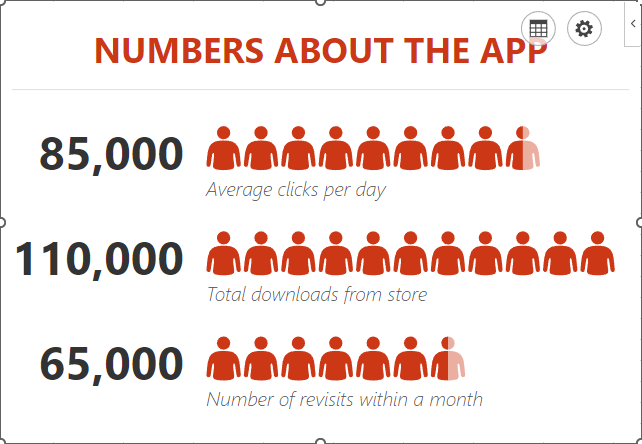
Microsoft Excel is a great way for data to be visualized, particularly as it offers various features to highlight the context of the data you’re trying to communicate with. Today, we wanted to walk you through how you can use one such feature—People Graphs—to do so particularly impactfully.

What are People Graphs?

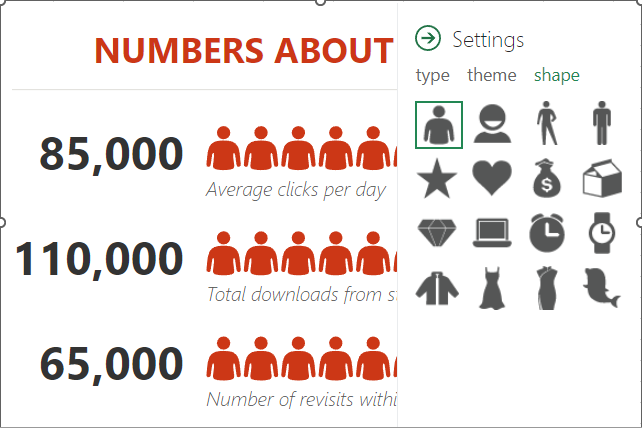
People Graphs are a Microsoft Office Add-In that allows you to create a quick data visualization. While the default icon included in the People Graphs is, predictably, a person, the graphs can be customized to display different icons—from a star, a heart, a clock, a bag of money or various others.

Let’s go over how you can create these simple graphs to present simple data points to your advantage.

Creating a People Graph

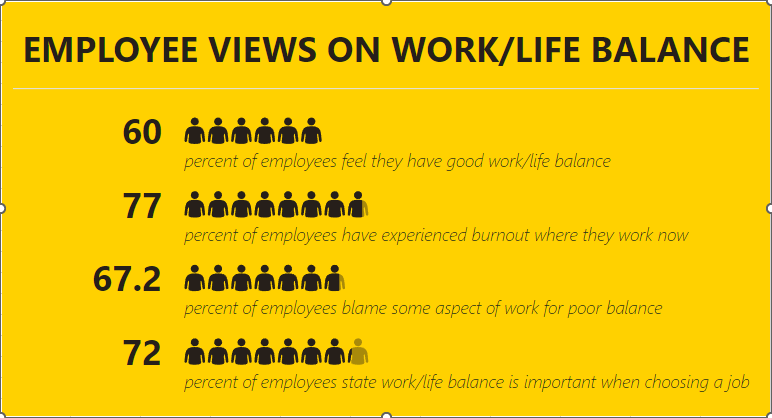
First, you need to have the data you want your People Graph to depict in your spreadsheet. Let’s assume that you wanted to share some statistics concerning the work/life balance habits of today’s workers. In one column, list out the stats you want to share, and in the next, list out the numerical values associated with these statistics.

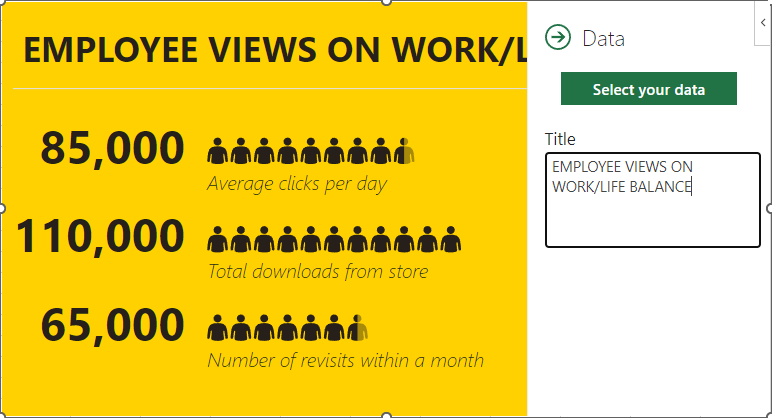
Select this data range. Then, in the Insert toolbar, select People Graph under Add-Ins. A premade graph will appear on your sheet. Select the Settings option, which will appear in the top-right corner when you click on the graph.

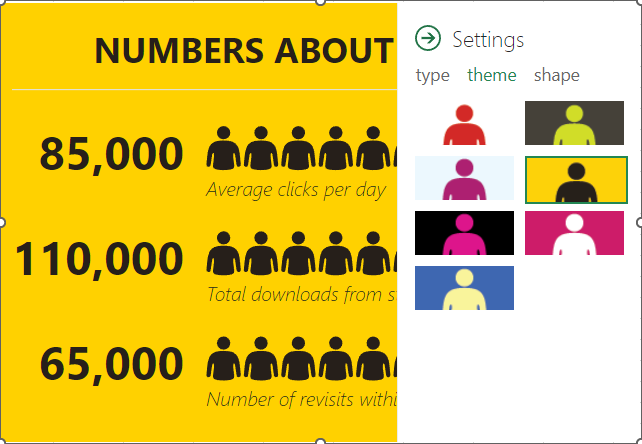
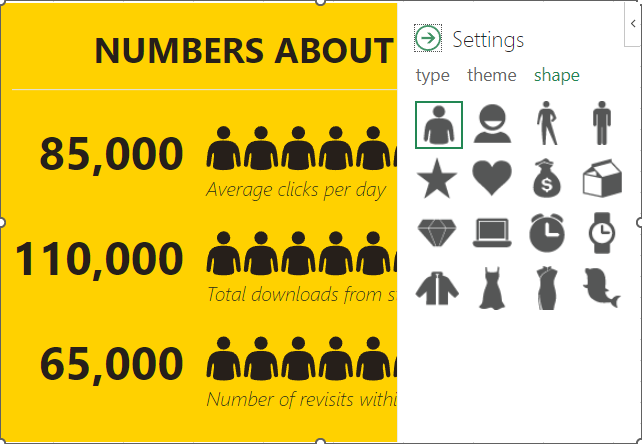
From there, you can customize what your graph looks like, its color scheme, and the shape of the icon itself.

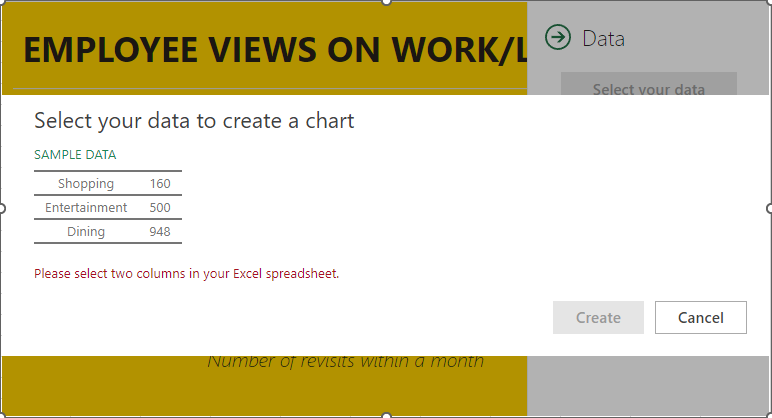
Once you’re pleased with the appearance of your graph, you can then select the grid button that appears next to the settings option. From there, you can customize the title and select the data that your graph pulls from.

Once you’ve selected the data, click Create, and your People Graph is complete.

Hopefully, you find plenty of use out of this capability!

Continue reading

Tip of the Week: 5 Keyboard Shortcuts to Make Life Easier


Tip of the Week: 5 Keyboard Shortcuts to Make Life Easier

Keyboard shortcuts are undeniably useful—to the point that some are almost ubiquitous. However, there are a lot that aren’t, and they are just about as useful. We wanted to introduce you to these shortcuts so you can incorporate them into your workflows.

Open a New Tab

Ctrl+T
Having an additional tab (or, if we’re being realistic, at least a couple) open in a browser or file management window is almost always helpful. Adding a new tab in either program is simple: press Ctrl+T.

Open a New Browser/File Explorer Window

Ctrl+N
Similarly, if your process would be better served by having an entirely new window in either your browser or file manager, the Ctrl+N shortcut does the job.

Search a Document or Web Page for Something

Ctrl+F
If you need to locate something in a document or a webpage, you can press Ctrl+F to open a search box, which you can use to locate a keyword.

Take a Quick Screenshot

Windows Key+Shift+S
Screenshots are great, and Windows just so happens to come with a baked-in utility to capture them: the snipping tool. Accessing this tool is simple, too… all you have to do is press Windows Key+Shift+S, and you’re good to go.

Force Quit a Crashed Application

Ctrl+Shift+Esc
If you find yourself struggling with stuttering software or one that isn’t responding at all, it’s often best to abandon ship and start over. While you’ll lose any unsaved changes to your work, you can force quit by pressing Ctrl+Shift+Esc.

For more handy IT tips to use in the workplace, make sure you check back here with Coleman Technologies!

Continue reading

How to Host a Hamilton Party Online


On July 3rd, the Tony-winning Broadway musical was released on Disney+, meaning that history buffs and theater nerds alike don’t have to Wait for It. Even better, you can now watch Hamilton with all your friends. We Know, it’s pretty cool, especially since you don’t all need to be In the Room Where it Happens. Let’s go over how you can arrange that in this song-title-pun-filled blog.

Making Use of a Disney+ Watch Party

What is a Watch Party? Simple: it’s where you virtually gather with your friends and family to simultaneously stream a movie or show together, despite being in different locations. Many services, like Amazon Video, added this feature to help people make it through social distancing during the global COVID-19 pandemic without telling anyone to “Meet Me Inside.”

Hosting a Hamilton Watch Party

To enjoy this theater production of the life and times of Alexander Hamilton along with your socially distant friends, there are a few things that will be required of all participants.

Disney+

Naturally, everyone who wants to watch will need an individual Disney+ account. Unfortunately, the free trial offer for Disney+ is no longer offered. After all, once the second season of the Mandalorian was announced, they knew they could say “You’ll Be Back” to all their subscribers (we’ll see how the $30 rental for the live-action Mulan impacts this).

Subscribing only requires a quick visit to https://www.disneyplus.com/. You may also want to check online for any promotional codes that may be currently offered.

A Browser Plugin

Everyone also needs to install a Chrome browser plugin. There are some exclusive to Disney+, while others allow you to host watch parties via Netflix, Hulu, YouTube, and Prime Video as well. If you’re hosting, pick the one that works for you and make sure everyone has it installed ahead of time so there aren’t any delays. If you only care about doing a watch party with Disney Plus, you can use the Disney Plus Party plugin. If you want to host watch parties with Netflix, Prime Video, YouTube, and Hulu as well, you can check out Vemos.

These plugins will let you synchronize your video with the rest of the watch party and chat with one another. Add the plugin to the top of your browser and create an account.

Once that’s accomplished, you can start up Disney+ in your Chrome browser and start the movie. Then you can click on your new plugin and select the option to host. You’ll be prompted to name your viewing room. Meanwhile, the rest of your party will need to have installed the plugin, created an account, joined a movie, and entered the name of your room. That Would Be Enough for everyone to participate.

Then, as the host, you have the power to start the movie and have it play to everyone’s device. You can pause it so that people can Take a Break without asking “What’d I Miss?” or you can play the entire production Non-Stop.

Fair warning—some of these group viewing applications are only free for a set number of hours each week. Make sure you pick one long enough to view the whole thing, so nobody starts asking What Comes Next?

With any luck, this will allow you and your friends to watch Hamilton and keep everyone Satisfied.

Want more handy technology tips and tricks? Consider Coleman Technologies Your Obedient Servant. Each week, we update this blog with more tips and best practices, along with a Hurricane of useful technology information. With our help, you don’t have to feel Helpless when it comes to your business’ IT. We can be your Right Hand Man, just give us a call at (604) 513-9428.

Let us know, how did we do with the song title puns? One Last Time, don’t forget to subscribe to our blog!

Continue reading

Three Easy-to-Implement Tips to Be More Productive


Productivity

Whether it's a personal challenge or a necessity, keeping productivity high is good for an individual’s career growth and overall self-worth. Unfortunately, staying on top of your game can be difficult. We thought we would give you three things to consider that will work to keep your productivity levels high.

#1 - Planning

To prioritize productivity, interruptions need to be eliminated. One of the best ways to accomplish this is to set out everything you need to do and sort all of it by project priority, time to accomplish tasks, and how completed tasks should be disseminated. This will give you a natural list of what to do first, how much time you have to accomplish the tasks laid out to you, and who depends on the work you are about to accomplish.

#2 - Sprint, Not a Marathon

One thing that people don’t always understand is that trying to sustain long stretches of productivity inherently makes a person less productive. When the mind gets tired, mistakes are more common and then work has to be redone. The answer to this is to work in sprints. Basically, take a task and complete it, take a break, start and complete another task, etc. If a task is too big to complete in 20-to-30 minutes, break it into smaller pieces. Being able to focus on one thing at a time can really help you get more done in a day.

#3 - Eliminate Distractions

One of the biggest problems with workers in the information age is that they are tethered to their phones. Most people take part in social media and the more times that someone touches their device, the more distracted they become. That is not even considering the litany of other distractions that can stymie productivity. Limiting notifications on devices and setting no-screen zones can go a long way toward keeping you from being distracted and your eyes on the proverbial prize. 

At Coleman Technologies, we help British Columbia businesses get the most out of their technology. Give us a call today at (604) 513-9428 to learn how we can help you.

Continue reading

Tip of the Week: How to Use Excel to Quickly Generate Folders


Tip of the Week: How to Use Excel to Quickly Generate Folders

As a manager, some of the administrative work can be, if not the worst part of the job, easily the least engaging. For instance, having to create all the different folders for the employees under your purview, projects, and other organizational needs. Fortunately, Microsoft Excel offers a relatively quick and easy way of doing just this.

Let’s walk through the process.

How to Use Excel to Mass Generate Folders (and Even Subfolders!)

Rather than manually going through, creating and naming each folder you need, Microsoft Excel enables you to automate the process somewhat. The trick revolves around you creating a Windows Batch file—a type of file that contains a script that executes predetermined commands in a specified order.

The process is as follows:

  • In one column, list all of the names your different folders need to have, whether that’s a month and year, each of your team members’ names, or your different departments.

  • To turn this into a batch file, you first need to add a second column that formats this data in a very specific way. Let’s assume that you wanted a folder for each month of 2024, for instance.

    • Your first column will be your list of months, January, February and so on, with cell A1 formatted as “2024 - January” to help avoid Excel auto-formatting your data.

    • Your second column will have the batch command filled out. This will require the following formula to be used:

      ="MD "&""""&A1&""""

      Dragging the bottom corner of your top cell down will populate the rest of your list, referencing the proper cell in the first column to complete the formula.
  • This will give you a list formatted as MD “2024 - January” and so on. Copy and paste this data into your Notepad application.

  • Once your batch commands are copied over, save your Notepad file as a .bat file format wherever you want your folders to be saved. Clicking this file will generate the folders where the .bat file was located.

Hopefully, this will help you to more quickly create the folders you require for your assorted needs.

Continue reading

Are You Practicing Good Password Hygiene?


How Hygienic are Your Passwords?

With so many of us relying on so many passwords every day, poor password hygiene can often seem to be a foregone conclusion. Think about your own passwords, right now, and see how they compare to this list of inherently insecure patterns that many people develop:

  • Personal details, like your name or birthday
  • Names of friends, family, or most infamously, your pets
  • Commonly used words (like “password” or a favorite sports team)
  • Simple keyboard patterns (like “12345” or “qwerty”)
  • Repeated login credentials (like username: David1973, password: David1973)
  • Making their passwords as short as possible

Now, before you zip away and try to figure out new passwords for all of the accounts that have these kinds of passwords protecting them, let’s take a few more moments to figure out how to actually come up with ones that will be secure.

To begin, let’s consider some “best practices” that should no longer be described as “best.”

Some Less-than-Best Practices

According to NIST (also known as the National Institute of Standards and Technology), the following practices aren’t all that effective any longer when it comes to secure password creation.

  • Alphanumeric Switching: So, we all (should) know that something like “password” isn’t nearly secure enough to be used as a password. As a result, many users would use “p455wO2d” instead, changing letters to numerals and occasionally playing fast and loose with their capitalization. While this isn’t always a bad strategy, using such a common password still makes it far less secure than it needs to be.
  • Length Requirements: It’s likely that you have encountered this as well, as a program has kicked back your chosen password while announcing that “it is too short/long for its eight-to-ten character limit.” According to NIST, these antiquated requirements literally short-change security, as longer passwords or passphrases are more difficult to crack but easier to remember than the short jumbles of random characters.
  • Banning Cut and Paste: For some reason, many username and password fields don’t allow content to be cut and pasted into them, almost as if the prospect of typing out someone’s account details will stop a hacker in their tracks. This also makes the use of password managers, a hugely useful tool in maintaining good password practices, less available. So long as they are used properly, password managers should always be encouraged, as they enable a user to store and use multiple passwords while only really remembering one.
  • Password Hints: We’ve all been asked to set hints for our passwords before, just in case we forget them. You know the ones: “Where did you graduate from high school?” or “What was your first pet’s name?” The trouble with these questions is simple: our online habits make this kind of information easy enough to find online, especially with social media encouraging us to share pictures of our pets, or announcing that we’re attending the “Educational Institution’s Class of Whatever Year’s Something-th Reunion.” Instead of relying on these hints, combine multiple forms of authentication to both offer additional means of confirming your identity and better secure your account.
  • Frequent Password Changes: Considering how many passwords we're all supposed to remember, it only makes sense that users would fight back against frequent password updates by only changing a single detail about it and calling it changed. For instance, let’s return to David1973 for a moment. If this user were forced to change his password too often, it is likely that he would resort to simply adding an easy-to-remember (and guess) detail. Maybe this is the fifth time that David1973 has been told to change his password, so while his password started as “David1973,” it progressed to “2David1973” to “3David1973” and so on to “5David1973.” Of course, we aren’t arguing that passwords should never be changed, but make sure that these changes aren’t actually counterproductive.

How to Create a Secure Password

Rather than using a password, per se, we recommend that you instead use a passphrase. Let’s use a quote by author Elbert Hubbard as our example: “Positive anything is better than negative nothing.” 

Of course, this is a mouthful to type, in a manner of speaking, so it might make sense to use some alphanumeric switching to help abbreviate it into a complex phrase that is still easy to remember.

Doing so, “positiveanythingisbetterthannegativenothing” becomes “p0$!tiV3NE+hg>-tiV3_+hg”.

Then, if you use this password as the master access code for a password manager, the rest of your passwords/passphrases could foreseeably be randomly generated, increasing your overall security even further. To make your password manager even more secure, you should really devise your own complex phrase, rather than steal one from an author.

You never know, some enterprising cybercriminal might be a big fan of Hubbard’s works, too.

For more advice and assistance to help you make your passwords and accounts as secure as possible, reach out to Coleman Technologies by calling (604) 513-9428 today!

Continue reading

About Coleman Technologies

Coleman Technologies has been serving the British Columbia area since 1999, providing IT Support such as technical helpdesk support, computer support and consulting to small and medium-sized businesses. Our experience has allowed us to build and develop the infrastructure needed to keep our prices affordable and our clients up and running.

get a free quote

Understanding IT

Get the Knowledge You Need to Make IT Decisions

Technology is constantly evolving, and keeping up can feel overwhelming. Whether you want to understand cybersecurity threats, explore automation, or learn how regulations like PCI DSS impact your business, we’ve made it easy to access clear, straightforward insights on key IT topics.

Insights to Understanding IT

Contact Us

20178 96 Ave C400
Langley, British Columbia V1M 0B2

Mon to Fri 7:00am–5:00pm

[email protected]

(604) 513-9428

Coleman Technologies Awards & Memberships

Image
Image
Image