
Coleman Technologies Blog

Coleman Technologies Blog

We can give your organization comprehensive IT services and 24/7/365 live support for a predictable monthly fee. Stop stressing about technology, and start focusing on growing your business.

Even Basic Business Software Can Be Used to Make Art


Even Basic Business Software Can Be Used to Make Art

What is art? It’s not an easy question to answer, especially with new techniques and mediums being developed all the time. By definition, art can be basically summed up as the creative expression of an individual through some medium.

For Japanese artist Tatsuo Horiuchi, that medium is one that is familiar to those in and out of the art world.

Tatsuo Horiuchi Excels at His Craft…

…in a very literal sense. His art is not formed by clay or paint, but instead, the cells found in a Microsoft Excel worksheet.

Upon his retirement from his work as a medical equipment engineer, Tatsuo wanted to keep himself occupied, and his thoughts turned to becoming an artist. Lacking the supplies to do so traditionally (as well as the desire to invest in these supplies), the burgeoning artist decided to utilize a tool that he already had access to: Excel.

As he had never actively used the software for his work, Tatsuo dove into learning about the software and its features, teaching himself how to use different tools to accomplish different things. The autoshape feature helps with the overall design, the graph-focused line tool was repurposed to create trees, and the fill tool allows him to accomplish the shading that amplifies a painting’s depth. Gradually teaching himself these little tricks, Tatsuo’s process began in 2000 with the goal of creating something he would be willing to show to people within 10 years. His first three years were focused on learning to use Excel’s tools to create recognizable shapes and objects, while the next three were focused on combining them all into a cohesive image. In 2006, he won the Excel Autoshape Art Contest.

Since then, Tatsuo’s art has been featured at the Gunma Museum of Art, an honor shared by the likes of Monet and Renoir.

You can check out some of his work here.

One Moral of the Story: Technology Can Be Leveraged in Many Ways

All it takes is a bit of ingenuity. That being said, we don’t want your business to go without the information technology that would benefit its processes—or that keeps it compliant with various regulations and requirements.

Our team at Coleman Technologies has been helping businesses around British Columbia manage their IT since YEAR, and we’d love the opportunity to help you with yours. While we can’t promise to turn your team into award-winning artists, we can help them do more with their technology. Find out more about our managed IT services and what they can help you accomplish by calling (604) 513-9428.


Continue reading

Tip of the Week: Using Microsoft Word Templates


In actuality, you’ve used a template every time you’ve opened a Microsoft Word document… the Normal template. However, you may want to use a different template to meet your different needs. If that’s the case, you’ll need to adjust some settings as you create your document.

As you select New from the File tab, you will be presented with a few options. One of them will be Blank document, but you also have the opportunity to utilize a huge variety of other templates that can be found in the application and then downloaded. Once you have done so, select your chosen template and your new document will be generated with that template’s contents. These can include:

  • Boilerplate text
  • Styles
  • Images and logos
  • Table of contents
  • Sections that split the document into different parts, with appropriate numbering
  • Table and chart boilerplates

Of course, this isn’t a comprehensive list of your options. Feel free to explore the different templates and their options to see all that these documents can do.

Once you have a few templates downloaded, you can even edit them to better fit your needs. To do so, all you need to do is open the template you want to edit (File>Open>This PC>My Documents>Open) and make your desired changes. Once that’s done, just Save and Close.

Why Bother with Templates at All?

There are a few advantages to using templates that you should see significant benefits from, such as:

  1. Templates can be shared amongst your staff and unify your business’ style.
  2. Templates can be used to make forms much easier (and less expensive) to reproduce.
  3. Templates can reference your other applications to simplify additional tasks.
  4. Templates allow you to quickly reformat your documents if need be.

So, do you think you’ll do any investigating into templates in the future? Why or why not? Let us know in the comments, and let us know what other tips you would find helpful!

Continue reading

Tip of the Week: Using People Graph in Microsoft Excel


Tip of the Week: Using People Graph in Microsoft Excel

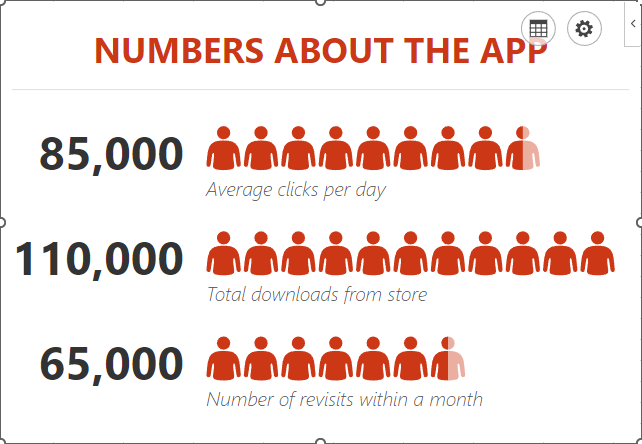
Microsoft Excel is a great way for data to be visualized, particularly as it offers various features to highlight the context of the data you’re trying to communicate with. Today, we wanted to walk you through how you can use one such feature—People Graphs—to do so particularly impactfully.

What are People Graphs?

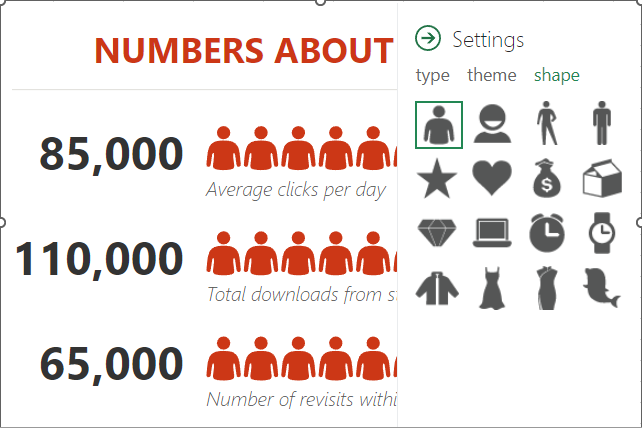
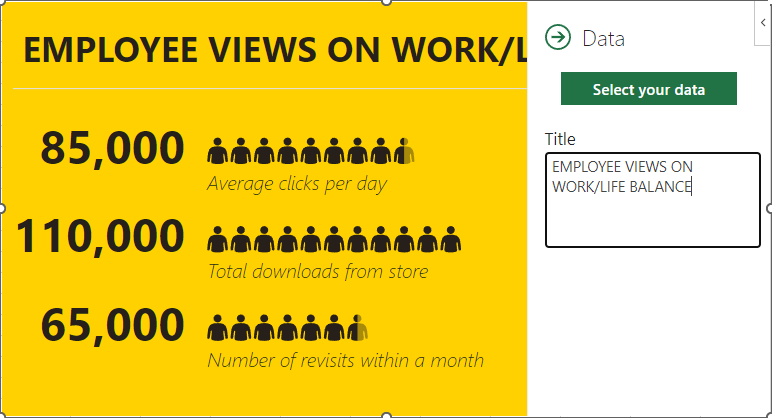
People Graphs are a Microsoft Office Add-In that allows you to create a quick data visualization. While the default icon included in the People Graphs is, predictably, a person, the graphs can be customized to display different icons—from a star, a heart, a clock, a bag of money or various others.

Let’s go over how you can create these simple graphs to present simple data points to your advantage.

Creating a People Graph

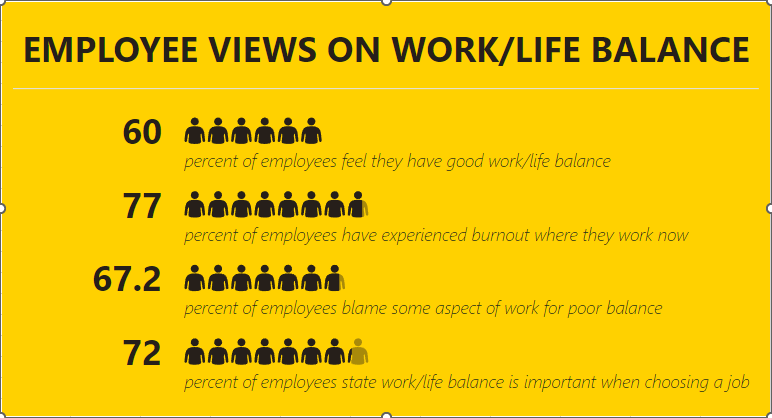
First, you need to have the data you want your People Graph to depict in your spreadsheet. Let’s assume that you wanted to share some statistics concerning the work/life balance habits of today’s workers. In one column, list out the stats you want to share, and in the next, list out the numerical values associated with these statistics.

Select this data range. Then, in the Insert toolbar, select People Graph under Add-Ins. A premade graph will appear on your sheet. Select the Settings option, which will appear in the top-right corner when you click on the graph.

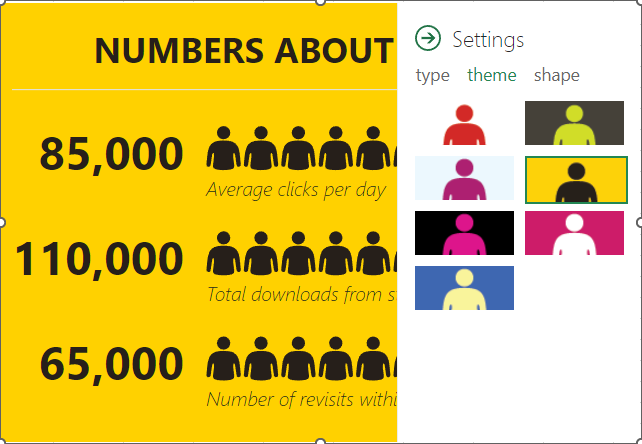
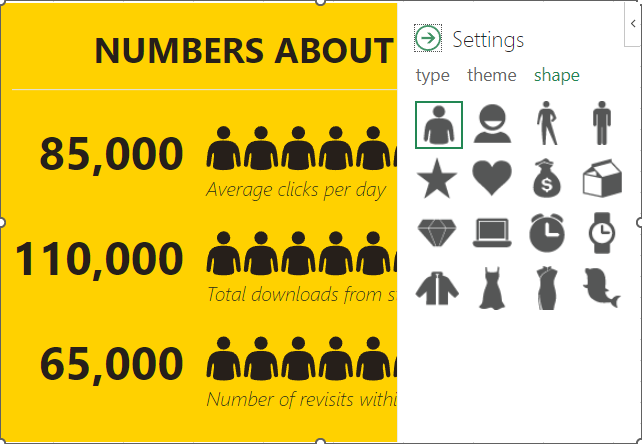
From there, you can customize what your graph looks like, its color scheme, and the shape of the icon itself.

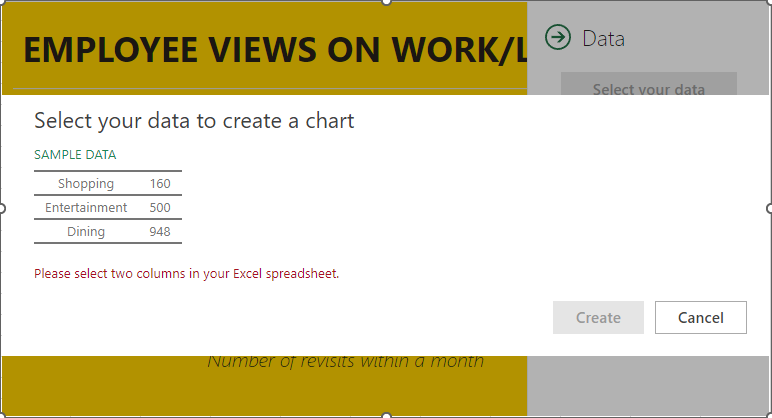
Once you’re pleased with the appearance of your graph, you can then select the grid button that appears next to the settings option. From there, you can customize the title and select the data that your graph pulls from.

Once you’ve selected the data, click Create, and your People Graph is complete.

Hopefully, you find plenty of use out of this capability!

Continue reading

Tip of the Week: Keeping Track of Changes Made in Excel


Let’s go over how to set up this capability. As a disclaimer, it will require you to edit some of your menu options, so reach out to your IT resource to confirm that it is okay to do so and to assist you if need be.

You should also know that Track Changes won’t work if a spreadsheet contains a table that hasn’t been converted into a range. To make this conversion, select the table, navigate to the Design tab, and click the Convert to Range option. If you want others to be able to collaborate on your workbook, it needs to be saved in a shared location.

Adding the Track Changes Buttons

To access these options, you’ll need to add them to your Ribbon menu (unless your version of Excel includes them by default). Doing so is simple:

  • Right-click on the Ribbon menu. From the options available, select the Customize the Ribbon option.
  • On the resulting dialog screen, find the drop-down menu labelled Choose commands from: and select All Commands. In the other menu, select Main Tabs, and find Review in the list that appears. Click on the + next to Review, and then click the New Group button.
  • Right click on New Group, renaming it to “Track Changes.”
  • With “Track Changes” selected, find Highlight Changes and Accept/Reject Changes in the left-hand list. Click the Add button to add them to your “Track Changes” group.

Once your Highlight Changes button has been added to the Review category of the Ribbon menu, click on the Highlight Changes button. A box will appear, where you should select both Track changes while editing… and Highlight changes on screen. Click Okay once you’ve done so.

Once you’ve done this, any changes made to the spreadsheet will be marked with a small triangle in the corner of the cell to display the most recent change.

Reviewing all Changes

After everyone has contributed their input, you can choose to accept or reject the changes that have been made with the Accept/Reject Changes button. You’ll be asked to Save the Workbook, and once you have, the changes will be highlighted one by one with the option to Select Changes to Accept or Reject.

All changes will be listed so that you can Accept them or Reject them accordingly. The cursor will automatically proceed to the next change for you to repeat the process. If there are multiple instances of a similar change (like all ampersands or percentages written out instead of the symbols used), you can use the Accept All button to mass update them.

With any luck, we’ve helped make collaboration that much easier for you and your team members. For more tips like this, as well as best practices and other IT assistance, make sure you subscribe to our blog. Remember, our team is always available at (604) 513-9428 for your IT needs.

Continue reading

Tip of the Week: How to Use Excel to Quickly Generate Folders


Tip of the Week: How to Use Excel to Quickly Generate Folders

As a manager, some of the administrative work can be, if not the worst part of the job, easily the least engaging. For instance, having to create all the different folders for the employees under your purview, projects, and other organizational needs. Fortunately, Microsoft Excel offers a relatively quick and easy way of doing just this.

Let’s walk through the process.

How to Use Excel to Mass Generate Folders (and Even Subfolders!)

Rather than manually going through, creating and naming each folder you need, Microsoft Excel enables you to automate the process somewhat. The trick revolves around you creating a Windows Batch file—a type of file that contains a script that executes predetermined commands in a specified order.

The process is as follows:

  • In one column, list all of the names your different folders need to have, whether that’s a month and year, each of your team members’ names, or your different departments.

  • To turn this into a batch file, you first need to add a second column that formats this data in a very specific way. Let’s assume that you wanted a folder for each month of 2024, for instance.

    • Your first column will be your list of months, January, February and so on, with cell A1 formatted as “2024 - January” to help avoid Excel auto-formatting your data.

    • Your second column will have the batch command filled out. This will require the following formula to be used:

      ="MD "&""""&A1&""""

      Dragging the bottom corner of your top cell down will populate the rest of your list, referencing the proper cell in the first column to complete the formula.
  • This will give you a list formatted as MD “2024 - January” and so on. Copy and paste this data into your Notepad application.

  • Once your batch commands are copied over, save your Notepad file as a .bat file format wherever you want your folders to be saved. Clicking this file will generate the folders where the .bat file was located.

Hopefully, this will help you to more quickly create the folders you require for your assorted needs.

Continue reading

About Coleman Technologies

Coleman Technologies has been serving the British Columbia area since 1999, providing IT Support such as technical helpdesk support, computer support and consulting to small and medium-sized businesses. Our experience has allowed us to build and develop the infrastructure needed to keep our prices affordable and our clients up and running.

get a free quote

Understanding IT

Get the Knowledge You Need to Make IT Decisions

Technology is constantly evolving, and keeping up can feel overwhelming. Whether you want to understand cybersecurity threats, explore automation, or learn how regulations like PCI DSS impact your business, we’ve made it easy to access clear, straightforward insights on key IT topics.

Insights to Understanding IT

Contact Us

20178 96 Ave C400
Langley, British Columbia V1M 0B2

Mon to Fri 7:00am–5:00pm

[email protected]

(604) 513-9428

Coleman Technologies Awards & Memberships

Image
Image
Image